
Turn a GIF into a Live Photo Wallpaper for iPhone — Without Installing Anything
Convert any animated GIF into an iPhone-ready Live Photo in seconds — no upload, no watermark.
You found the perfect animated GIF for your lock screen. You go to set it as wallpaper — and iOS says no. iPhones don't accept GIFs as wallpapers. They only work with Live Photos.
The fix: convert the GIF into a .mov video + .jpg cover image pair, then import that into a free iOS app like intoLive. The whole process takes about two minutes, and the conversion itself runs entirely in your browser — your GIF never touches a server.
Why Can't iPhones Use GIFs Directly?
A GIF and a Live Photo are fundamentally different formats. A GIF is a loop of compressed image frames. A Live Photo is Apple's proprietary format — a still JPEG paired with a 1.5–3 second H.264 video clip, synced with metadata that tells iOS they belong together.
You can't rename animation.gif to animation.mov and call it a day. The container structure, codec, and metadata are all incompatible. The conversion needs to:
- Decode every frame of the GIF into raw pixels
- Re-encode those frames as H.264 video in an MP4/MOV container
- Extract one frame as the JPEG cover image
- Bundle both files so an iOS app can stitch them into a real Live Photo
That last step is the catch. Apple's PHAssetCreationRequest API — the one that creates native Live Photos — only runs on iOS. No browser can call it. So the closest a web tool gets is producing a .mov + .jpg pair that apps like intoLive, VideoToLive, or Live Maker convert into a proper Live Photo.
How the Browser Does the Conversion
Modern browsers ship with the WebCodecs API — specifically VideoEncoder, which can encode H.264 video frames directly in JavaScript. No plugins. No downloads. Here's what happens under the hood when you drop a GIF into the converter:
- Frame extraction — the browser decodes each GIF frame into raw pixel data using the built-in GIF decoder.
- H.264 encoding — every frame feeds into
VideoEncoderwith the H.264 codec (the format iOS prefers). Output: a.movvideo file. - Cover extraction — the first frame (or a frame you pick) saves as a JPEG.
- ZIP packaging — both files bundle into a single ZIP for one-click download.
All of this happens locally. Your GIF stays on your device — no upload, no server, no third-party storage. (This matters if your GIF contains anything personal, embarrassing, or work-related.)
Browser Support
| Browser | Minimum Version |
|---|---|
| Chrome | 94+ |
| Edge | 94+ |
| Safari | 16.4+ |
| Firefox | 130+ |
Roughly 93% of global browsers support WebCodecs. Desktop Chrome and Edge give the smoothest experience for large GIFs — more memory, faster encoding.
Step-by-Step: GIF to Live Photo on iPhone
Here's the full workflow, from GIF to a working lock screen wallpaper.
1. Open the converter
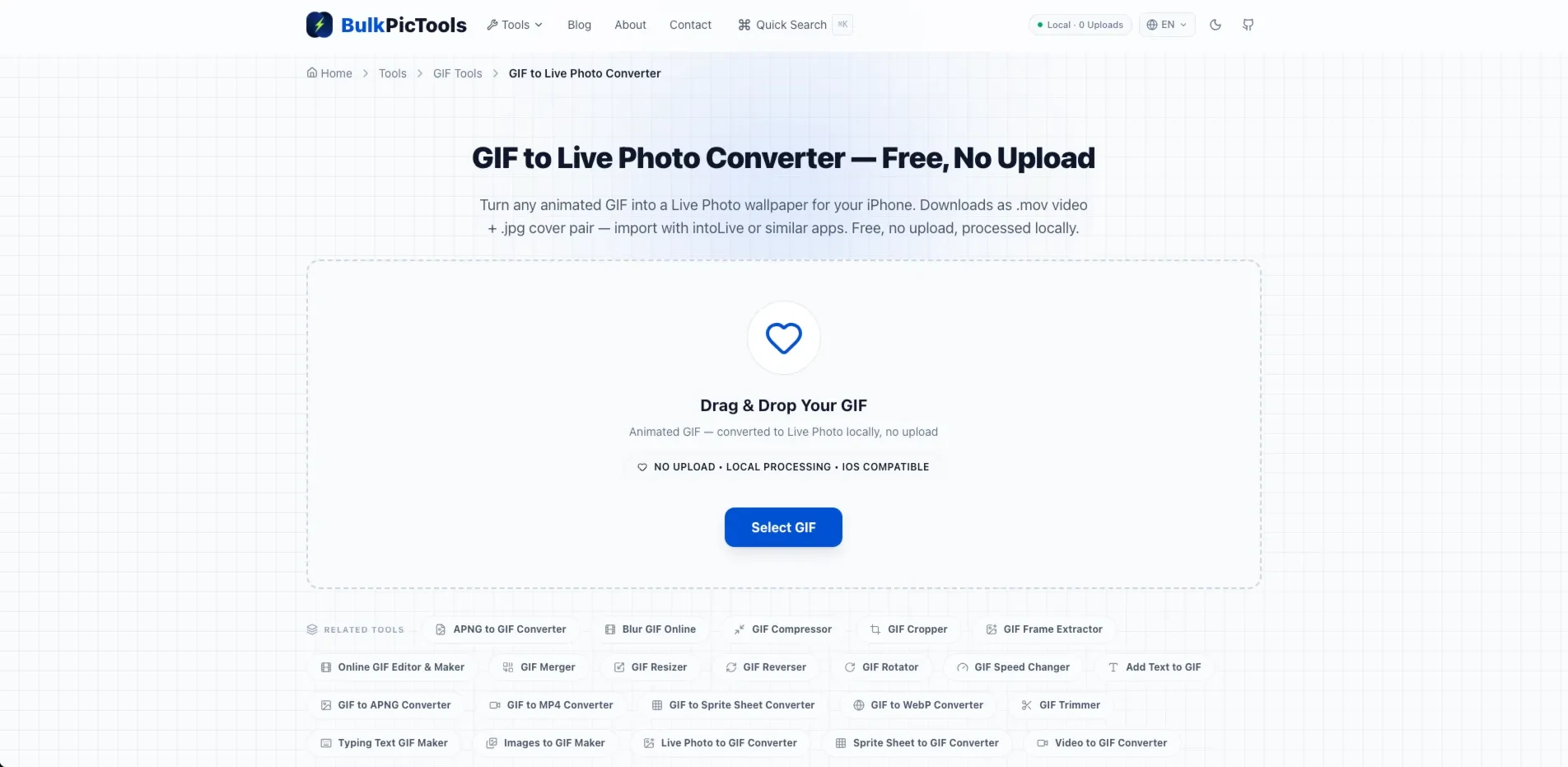
Head to the GIF to Live Photo Converter in Chrome, Edge, or Safari (16.4+). Free, no account, no watermark.
2. Upload your GIF
Drag and drop your animated GIF onto the page, or click to browse. The file loads entirely in your browser — nothing gets uploaded.
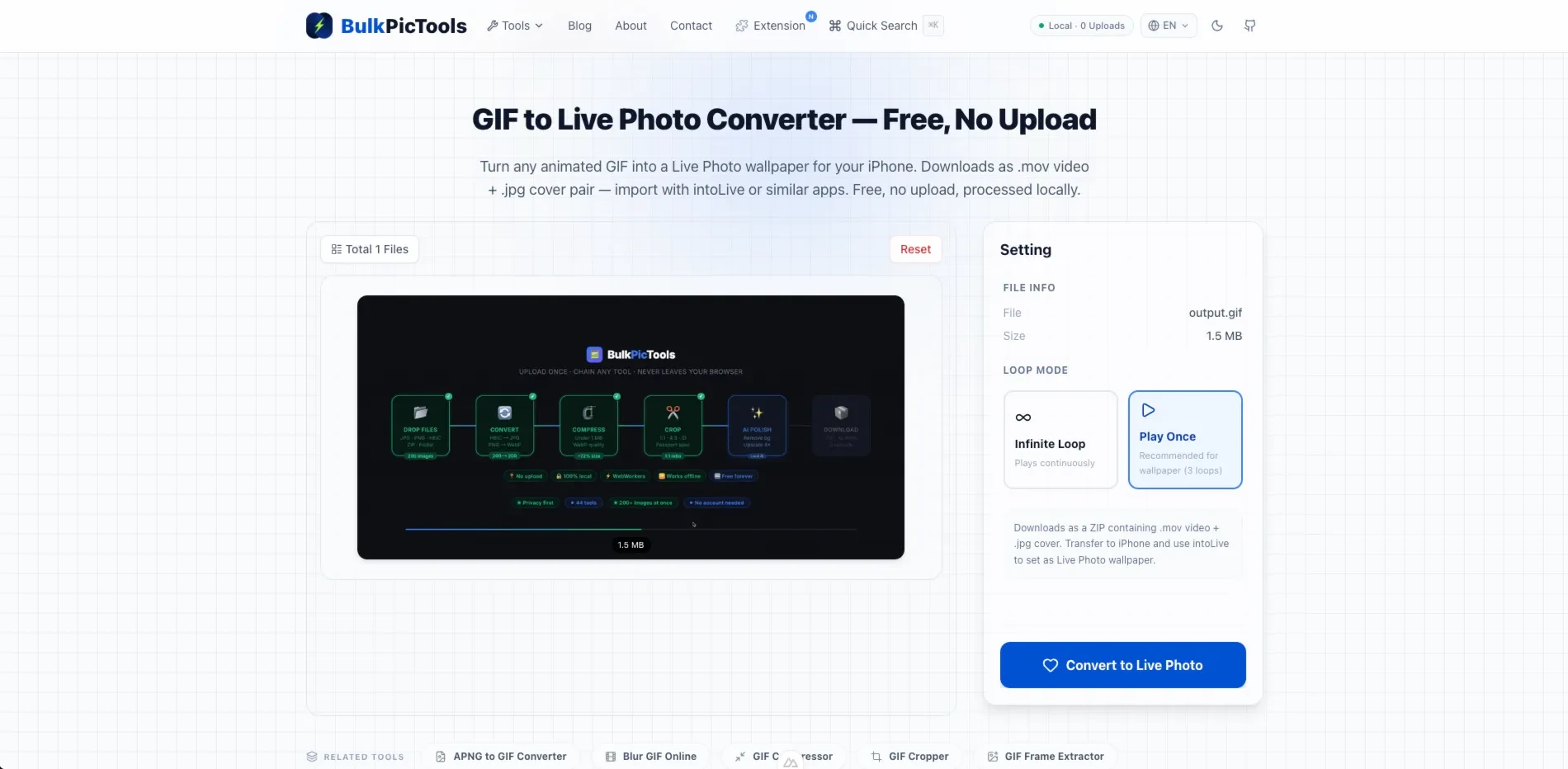
3. Pick a loop mode
- Play Once — the animation plays once when you press the lock screen, then stops. This is the better choice for wallpapers. It feels more natural and drains less battery.
- Infinite Loop — the animation repeats while you hold the screen. Works well for viewing in Photos, but gets annoying as a wallpaper.
For lock screen use, go with Play Once.
4. Convert and download
Hit "Convert." The tool encodes the GIF into a .mov video, pulls out a .jpg cover image, and downloads both as a ZIP.
5. Transfer to your iPhone
If you converted on a computer, get the ZIP onto your iPhone:
- AirDrop (fastest on Mac) — right-click the ZIP → Share → AirDrop → your iPhone.
- iCloud Drive — upload to iCloud Drive, then open Files on your iPhone.
- Email — send the ZIP to yourself.
- Messages — text it to yourself (or a friend who won't ask questions).
On your iPhone, unzip the file. You'll have a .mov video and a .jpg image.
6. Save as a Live Photo with intoLive
Download intoLive from the App Store (free). Open it:
- Tap "Video" and select the
.movfile. - Adjust the cover frame if needed — the app shows a timeline scrubber.
- Tap "Make" → "Save as Live Photo."
Done. The Live Photo is now in your Photos library.
Other free apps that work: VideoToLive, Live Maker, Live Photo from Video. All do the same thing.
7. Set it as your lock screen wallpaper
- Open Photos and find the Live Photo you just saved.
- Tap the Share button (box with an arrow).
- Tap "Use as Wallpaper."
- Choose Lock Screen — Live Photos only animate on the lock screen, not the home screen.
- Adjust the crop, then tap "Set."
Lock your iPhone. Press the power button again, then firmly press the lock screen — your GIF animation plays.
Quick Summary (5 Steps)
Just want the short version?
- Open the GIF to Live Photo converter.
- Upload your GIF → choose "Play Once" → click Convert.
- Download the ZIP → transfer to your iPhone.
- Open intoLive → import the video → save as Live Photo.
- Photos → Share → Use as Wallpaper → Lock Screen.
Five steps. All free. No desktop software.
Limitations Worth Knowing
This approach works well, but it's not magic:
You still need one free iOS app. Browsers can't create native Live Photos — that's an Apple API restriction. Apps like intoLive bridge the gap for free. If you want zero extra apps, Apple's Shortcuts app can do it too, but the setup is more involved.
GIF size matters. Huge GIFs (50 MB+) can slow down the browser or exhaust memory. If yours is large, compress it first before converting.
Duration gets trimmed. Live Photos play for about 1.5–3 seconds on the lock screen. A 10-second GIF gets cut short. For the best wallpaper effect, start with GIFs that are already short and punchy.
Desktop is smoother. Safari 16.4+ on iPhone supports WebCodecs, but desktop browsers handle large files better — faster encoding, fewer memory crashes, easier file management.
Not all GIFs make good wallpapers. Fast motion, tiny details, and small text often look muddy at lock screen size. Simple animations with a clear subject work best.
Frequently Asked Questions
Can I convert a GIF to a Live Photo without any app at all?
Not completely. The browser can convert your GIF into a .mov + .jpg pair, but turning that into a real iOS Live Photo requires one free app (intoLive, VideoToLive, or similar). Apple's Shortcuts app — which comes pre-installed on iPhones — can also do this, but the setup is more complex.
Does BulkPicTools upload my GIF to a server?
No. The entire conversion runs in your browser using WebAssembly and the WebCodecs API. Your GIF never leaves your device — not even for a split second. There's no server involved at all.
What's the best GIF length for a Live Photo wallpaper?
Under 3 seconds. The iPhone lock screen plays Live Photos for roughly 1.5–3 seconds. A GIF that's already short and loops naturally will look best. If your GIF is longer, you can trim it first to the best segment.
Why does my Live Photo look blurry on the lock screen?
Two common reasons: the GIF's resolution is too low for your iPhone's screen (iPhone 15 Pro is 2556×1179 pixels), or the GIF has heavy compression artifacts. Try starting with a higher-quality GIF, or resize it to match your iPhone's resolution before converting.
Can I do this on Android?
Live Photos are an Apple-only feature. Android doesn't have an equivalent format. However, you can set an animated GIF directly as your wallpaper on many Android phones using the built-in gallery app or Google Photos — no conversion needed.
What to Do Next
If your GIF is too large to convert smoothly, compress it first — BulkPicTools GIF Compressor reduces file size by up to 80% without visible quality loss.
Starting from a video instead of a GIF? Skip the GIF step entirely — the Video to Live Photo trimmer cuts your clip to the moment you want, crops it to 9:16 and exports the MOV plus a cover frame for the same iPhone app workflow.
Need to go the other direction? If you already have a Live Photo and want to turn it into a GIF (for sharing on Discord, social media, or websites), the Live Photo to GIF converter handles that in the browser too.
Have questions or feedback? Contact