
How to Bulk Resize Images for Shopify & Amazon (2048×2048, Free, No Upload)
Resize hundreds of product photos to 2048×2048 in one go — no app, no upload, runs entirely in your browser.
You photographed 200 products over the weekend. Now you're staring at 200 JPEGs with cluttered backgrounds, inconsistent sizes, and file sizes that'll trigger Amazon's upload rejection. Shopify wants 2048×2048px. Amazon demands pure white RGB(255,255,255). Etsy wants at least 2000px on the long side.This guide walks you through how to bulk resize images for Shopify (to the recommended 2048×2048), meet Amazon's white background rules, and compress everything under 500KB — all in your browser, without installing anything.
One photo, edited manually: maybe 3 minutes. Two hundred photos: 10 hours. That math doesn't work for any serious seller.
The good news: you can run the entire workflow — background removal, resizing, compression, format conversion — in your browser, on your own machine, without uploading a single file to any server. Here's exactly how.
What Each Platform Actually Requires
Before touching a single image, get the specs right. Getting rejected after processing 500 images is a painful lesson.
Amazon is the strictest. Main product images must have a pure white background — and they mean pure: RGB(255, 255, 255), not off-white, not #FAFAFA, not "close enough." The product must fill at least 85% of the frame. JPEG only for main images, under 10MB, minimum 1000px on the longest side (1600px+ recommended for zoom to activate).
Shopify is more flexible. No background color requirement, but square images (1:1) work best across themes. Recommended size is 2048×2048px for high-res zoom. Keep files under 20MB — but for page speed, honestly under 500KB is where you want to be.
Etsy asks for at least 2000px on the longest side. They accept JPEG, PNG, GIF. No background requirement, though clean white or lifestyle backgrounds perform better in search results.
WooCommerce / your own store varies by theme, but square, consistent-size images under 200KB is a safe default that keeps load times fast.
The Time Problem (With Real Numbers)
Manual processing — open image, remove background, resize canvas, export, compress — takes roughly 3–5 minutes per photo if you're fast. And that's before counting the time spent downloading results from one tool and re-uploading them into the next. For 200 product images:
- Manual: 10–17 hours
- Batch processing with constant download/upload between tools: 30–45 minutes
- Batch processing with direct tool chaining (no download/re-upload): 15–25 minutes
That's not a small difference. For a seasonal seller adding a new collection, batch processing is the difference between a weekend project and losing a week of your life.
The other problem with manual workflows: inconsistency. After editing image #150, your crop margins are slightly different, your compression settings drifted, your exported sizes don't quite match. Batch tools apply identical settings to every file.
The Full Workflow: 4 Steps, All in Your Browser
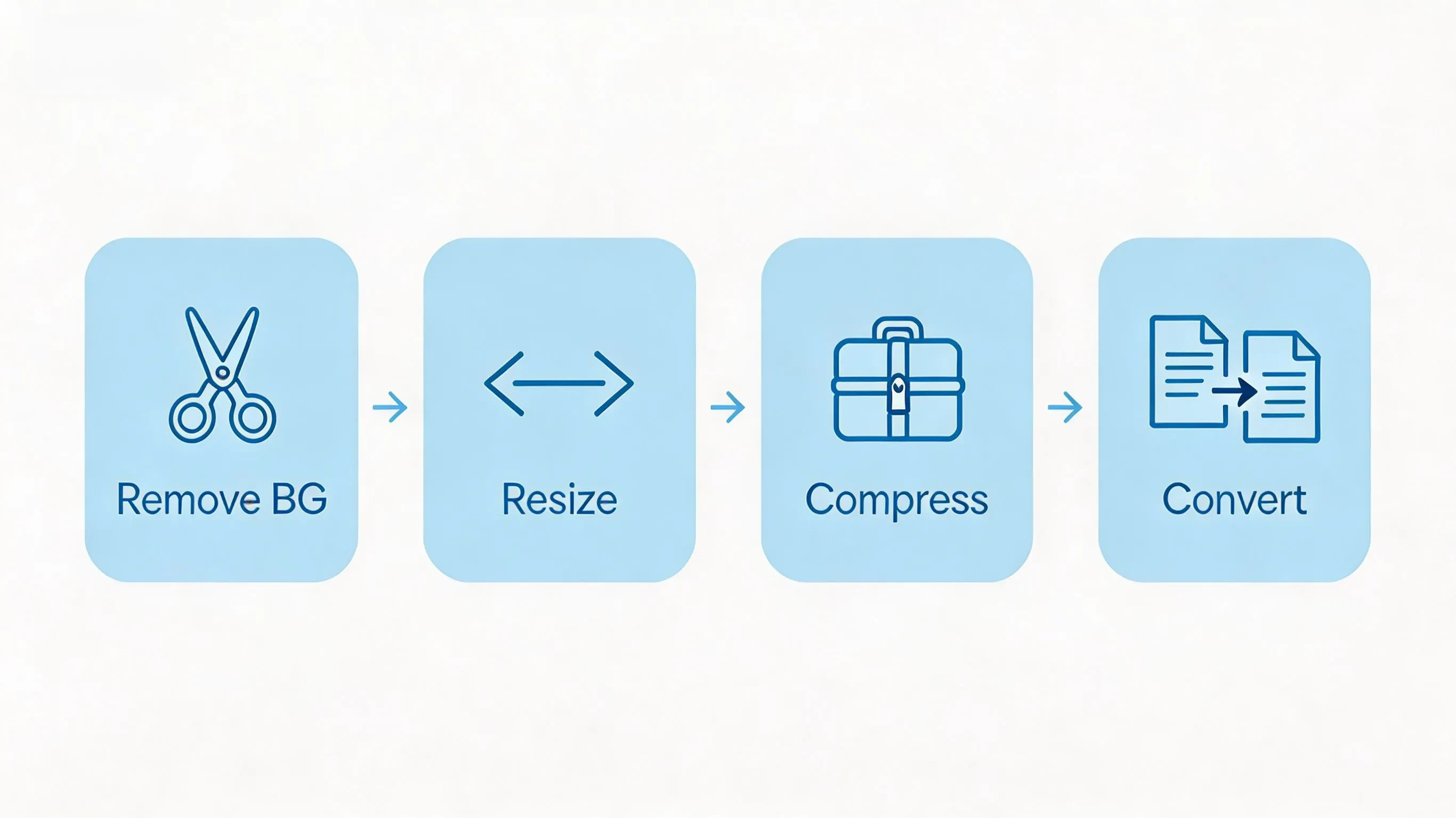
One thing before you start: you don't need to download your results between steps. After each tool finishes, BulkPicTools shows you a "Continue to next tool" option on the results page — your processed images are passed directly to the next tool without any downloading or re-uploading. For a 200-image batch, skipping that step four times over adds up.
Step 1 — Remove Backgrounds in Bulk
Go to BulkPicTools Background Remover and drop all your product photos in at once. The AI detects product edges automatically — it handles everything from clothing and shoes to small accessories and glassware.
For Amazon's white background requirement specifically: after background removal, you get a transparent PNG. The tool fills that transparency with white before export, giving you the RGB(255,255,255) that Amazon requires.
One thing worth knowing: cloud tools like remove.bg process your images on their servers. That means your unreleased product photos — items that haven't launched yet — travel to a third-party server. If you're launching a new product line before competitors can copy it, that's a real consideration. BulkPicTools processes everything locally; your images never leave your machine.
When the batch is done, hit "Continue to next tool" and select the resizer. Your 200 background-removed PNGs move over automatically.
Step 2 — Bulk Resize Images for Shopify to 2048×2048(and Amazon/Etsy Specs)
Your images arrive here straight from Step 1 — no re-uploading needed. Set a consistent output size and apply to the entire batch.
Recommended settings by platform:
| Platform | Target Size | Aspect Ratio |
|---|---|---|
| Amazon | 1600×1600px (minimum) | 1:1 (square) |
| Shopify | 2048×2048px | 1:1 |
| Etsy | 2000×2000px | 1:1 or 4:3 |
| WooCommerce | 800×800px or 1200×1200px | 1:1 |
Set it once, apply to all 200 images. Every output comes out identical. Then hit "Continue to next tool" → Compress.
Step 3 — Compress Without Visible Quality Loss
Images arrive here already resized. No upload step.
Uncompressed 2048×2048px PNGs can run 3–8MB each. Multiply by 200 products and your media library becomes a page speed nightmare.
Use the Compress Image to 500KB tool for most product images — this hits Shopify's performance sweet spot while keeping images sharp enough for zoom. For smaller thumbnail-style images or mobile-first products, Compress to 200KB works well.
A 2048px product image compressed to under 500KB is practically indistinguishable from the uncompressed version on screen. The difference shows up in your Core Web Vitals score, not in customer perception.
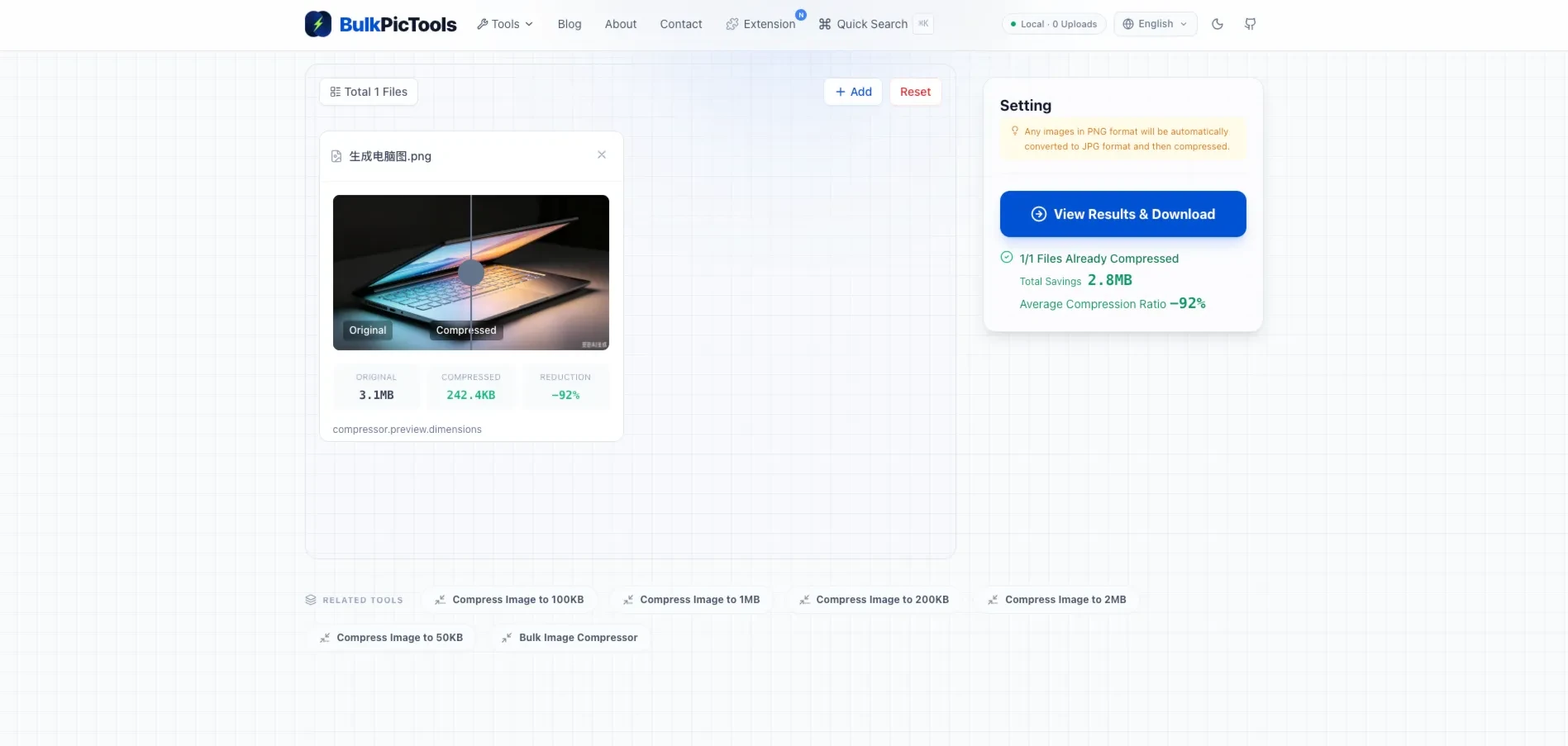
If you need format conversion, hit "Continue to next tool" one more time.
Most Shopify themes are built around square images. When you bulk resize to 2048×2048, every product page, collection grid, and search result thumbnail displays consistently without cropping or distortion.
Step 4 — Convert to the Right Format
Your compressed images land here automatically. No re-uploading.
Amazon accepts JPEG for main product images. Shopify supports WebP (and serves it automatically where supported). Etsy accepts JPEG and PNG.
If your background-removed exports are PNGs and you need JPEGs for Amazon, use the Bulk Image Converter to convert the whole batch at once. You can also export as WebP for Shopify to shave another 20–40% off your file sizes without touching image quality.
Adding Your Brand: Watermarking Lifestyle Photos
For secondary product images — lifestyle shots, detail photos, scale references — you might want a subtle logo or brand watermark. The Batch Image Watermark tool handles this for 100+ images at once, with control over opacity, position, and scale.
A light watermark in the corner of lifestyle photos is common practice on Etsy and independent stores. Skip this for Amazon main images — watermarks violate their image guidelines.
Why "No Upload" Matters More Than You Think
Most photo editing services — even well-regarded ones — process images on their servers. For editing personal vacation photos, that's fine. For product photos of items that haven't launched yet, it's a different calculation.
Your product photos can contain timing signals. A competitor who sees an upcoming product line could adjust their own listings, pricing, or inventory before you launch. With local processing, that risk doesn't exist.
There's also the simpler issue of privacy policies. Cloud tools store your images for varying periods — often 24–72 hours — and some use uploaded images to improve their AI models. You're trusting a third party's data practices with your business assets. BulkPicTools doesn't have a server to store your images on. That's not a marketing claim; it's just how the tool is built.
Verifying Amazon White Background Compliance
Amazon's image checker has rejected backgrounds that look white on screen but measure as #F8F8F8 or similar near-whites. A quick way to verify compliance before uploading:
Open your exported image in any image viewer that shows pixel values. Click the background area. You're looking for RGB(255, 255, 255) — all three values at 255. If you used BulkPicTools' background remover with white fill, this will be correct. If you got the image from another tool and aren't sure, the Photoshop eyedropper or a free tool like GIMP can confirm the exact value.
Amazon won't always catch near-white backgrounds immediately — but listings have been suppressed retroactively during policy audits. Get it right the first time.
Frequently Asked Questions
Can I really process 200+ product images at once without uploading anything?
Yes. BulkPicTools uses WebAssembly to run image processing directly in your browser. Your files are never sent to any server — the work happens entirely on your CPU and GPU. There's no file count limit, and you can process as many images as your device's memory allows (typically 100–300 at once depending on image size and your hardware).
Does BulkPicTools remove backgrounds accurately enough for Amazon product listings?
The AI background remover performs well on most product types — solid objects, packaged goods, clothing, footwear, accessories. Very fine details like hair fraying or transparent materials may need manual touch-up. For the majority of standard e-commerce product photos, the results meet Amazon's requirements without additional editing.
What's the right compression setting for Shopify product images?
For main product images on Shopify, target 200–500KB. This balances quality with page load speed. Shopify serves images through their CDN and converts to WebP automatically for supported browsers, so your original compressed JPEG or PNG is the source file — get it clean, then let Shopify handle delivery optimization.
How do I make sure my product images are exactly square (1:1) for all platforms?
Use the Bulk Image Resizer and set both width and height to the same value (e.g., 2048×2048). The tool will crop or pad to achieve the exact square output. For padding (adding white space rather than cropping), you can use the background color fill option to maintain the full product in frame.
Is this workflow free, or are there hidden limits?
The entire workflow described here — background removal, resizing, compression, format conversion, and watermarking — is free with no file count limits, no account required, and no watermarks added to your output. There are no premium tiers for basic functionality. The tools exist and they work; there's no trial period.
Do I have to download and re-upload images between each step?
No. After each tool finishes processing, you'll see a "Continue to next tool" option on the results page. Your images are passed directly to the next tool — no downloading a zip file, no re-uploading. For a multi-step workflow across 200 images, this alone saves 10–15 minutes.
The hardest part of this workflow is the first run. Once you've done it once — figured out your preferred compression settings, your target sizes per platform, your export format — the whole thing takes under 20 minutes for a new product batch. The "Continue to next tool" feature means you're never stuck waiting on a download to finish before starting the next step. Process, continue, process, continue, done.
If you need more advanced workflows — color correction, automated background replacement with branded scenes, or DAM (Digital Asset Management) integration across a large team — tools like Photoshop, Capture One, or Canto are worth looking at for that layer. But for the core task of getting product images into platform-compliant format in bulk, you don't need to pay for anything.
Have questions or feedback? Contact