
Best Free Image Compressors That Keep Your Photos Off Someone Else's Server
Compress dozens of photos at once, right in your browser — nothing ever gets uploaded.
You drag your passport photo into an online compressor. It says "uploading..." for three seconds, then spits out a smaller file. Done, right?
Except for those three seconds, your ID photo sat on a server you've never heard of, owned by a company whose privacy policy you definitely didn't read. For a meme you're posting on Discord, who cares. For a visa application, a client's product shots under NDA, or a scan of your kid's school form — that's a different story.
which compressors don't upload your files?
Most popular "free online image compressor" tools — TinyPNG, Compressor.io, iLoveIMG — work by uploading your image to their servers, compressing it there, and sending it back. Squoosh and BulkPicTools are the two well-known exceptions: both process images directly in your browser, so the image data never leaves your device. Squoosh uses WebAssembly-based codecs for finer control over compression; BulkPicTools uses the browser's built-in Canvas API. The difference in day-to-day use is that Squoosh handles one image at a time, while BulkPicTools is built for batches.
If you only care about one thing — "will this tool see my photo" — that's the short version. Everything below is about what you give up, or gain, depending on which one you pick.
Why "does it upload" should be the first question, not the last
Most compression roundups rank tools by file size reduction and call it a day. That's the wrong starting point if the image itself is the sensitive part.
Think about who actually needs to compress images regularly:
- People applying for visas, passports, or government IDs — where the photo has to be under a strict size limit (often 100KB or less) and is, by definition, a picture of their face plus identity-linked metadata
- Freelancers and agencies compressing client deliverables before sending them — sometimes under contracts that say client files shouldn't touch third-party infrastructure
- E-commerce sellers prepping product photos for items that haven't launched yet
- Anyone resizing screenshots that might contain account info, chat logs, or internal dashboards
In every one of these cases, "upload it to a random server to make it smaller" is a slightly absurd trade. You're solving a file-size problem by creating a data-handling problem.
To be fair, TinyPNG and similar services aren't doing anything shady — they typically auto-delete files after a set window, and they've been around long enough to have a track record. But "they say they delete it" and "it was never sent anywhere" are not the same guarantee, and for some use cases that distinction actually matters.
The contenders
A quick rundown of who's in this comparison and how each one approaches compression:
TinyPNG — the long-running favorite for PNG compression, using a "smart lossy" technique that strips unnecessary colors. Upload-based, browser or API.
Squoosh — Google's open-source image compression tool. Runs entirely client-side via WebAssembly, with a side-by-side before/after slider that's genuinely useful for dialing in quality. One image at a time.
Compressor.io — a straightforward upload-and-download compressor with lossy and lossless modes. Simple, no frills, but server-based like TinyPNG.
BulkPicTools — local-only, Canvas-based batch image compressor with presets for specific size targets (50KB, 100KB, 200KB, 500KB, 1MB, 2MB), so you're not guessing at a quality slider when a government portal demands "under 100KB."
Head-to-head: same images, four tools
📊 COMPARISON TABLE NEEDED Position: here Content: For each of 3 test images (a portrait photo, a screenshot/graphic, and a passport-style photo), show output file size and % reduction across TinyPNG, Squoosh, Compressor.io, and BulkPicTools, using default/recommended settings. Include a short note on visible quality differences if any. Source: user-provided test data (pending)
(Table to be inserted once test data is available — see note at end of section.)
A few things worth checking for yourself while you run a comparison like this: open your browser's dev tools to the Network tab before you upload anything. With TinyPNG and Compressor.io, you'll see a POST request carrying your image data. With Squoosh and BulkPicTools, you won't see your image leave at all — everything happens locally.
Scoring it out
| Privacy | Batch support | Format support | Free limits | Ease of use | |
|---|---|---|---|---|---|
| TinyPNG | Upload-based | Up to 20 files (5MB each) per upload | PNG, JPG, WebP | Free tier capped per month for API; web UI more generous | Very easy, drag-and-drop |
| Squoosh | Fully local | One image at a time | JPG, PNG, WebP, AVIF, and more | Unlimited (no server cost) | Easy, but manual per-image |
| Compressor.io | Upload-based | One file per compression (Pro adds batch) | JPG, PNG, GIF, SVG | Free tier limited file size | Easy |
| BulkPicTools | Fully local | Batch (many files at once) | JPG, PNG, WebP, and more | Unlimited | Easy, with size-target presets |
TinyPNG genuinely earns its reputation on PNG compression — its palette-reduction approach can outperform generic lossy compression on graphics with flat colors and few gradients. If you're compressing a handful of PNG icons and don't mind the upload, it's a solid pick. No need to pretend otherwise.
Where it falls short is volume and privacy at the same time. Need to compress 40 product photos to under 500KB each before uploading them to your store? TinyPNG's batch limits and upload model make that slower and less private than it needs to be.
How to batch-compress images locally with BulkPicTools
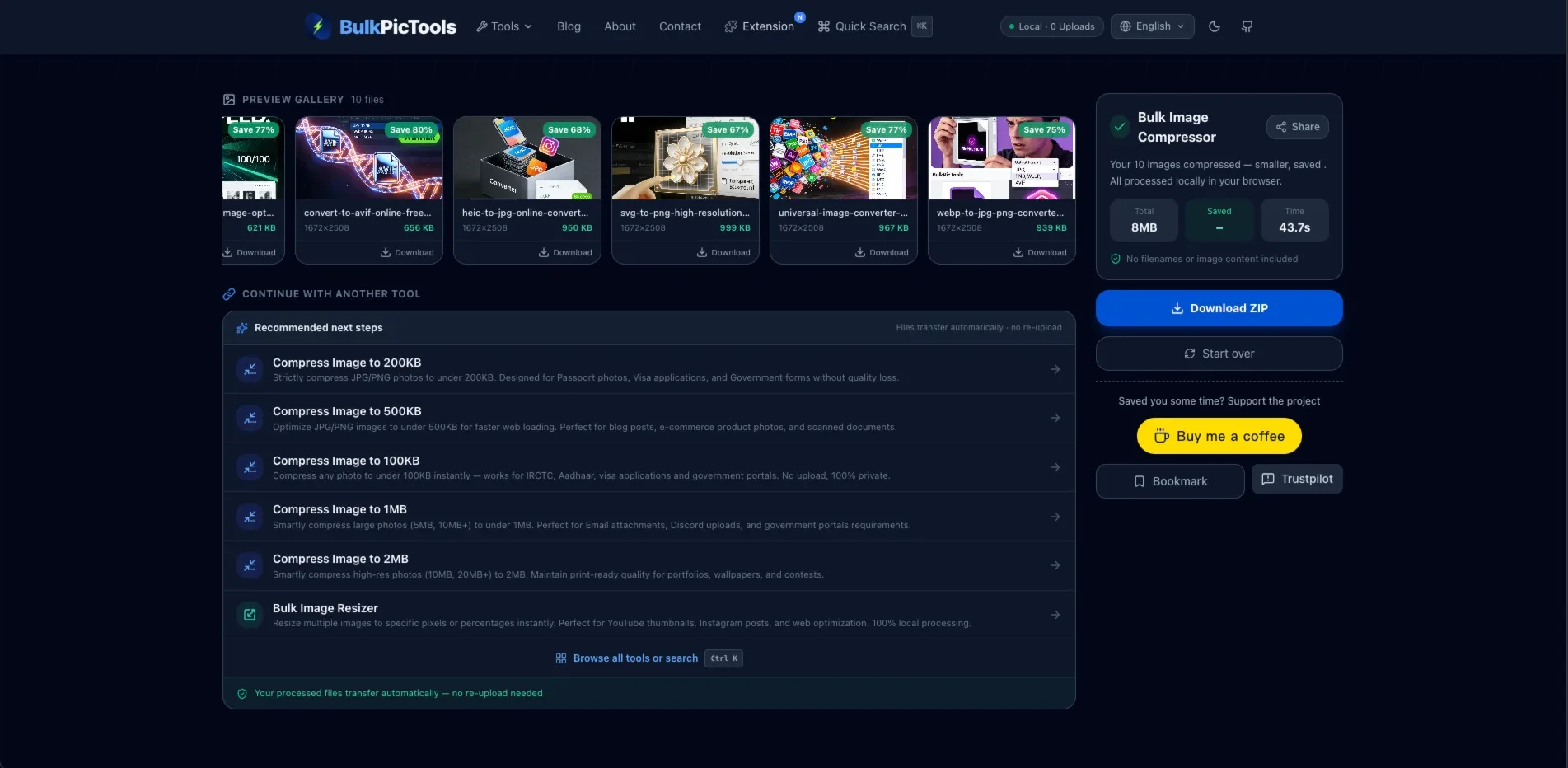
- Go to the Bulk Image Compressor and drag in as many images as you need — there's no per-file upload step, so adding 50 files takes about as long as adding 1.
- Pick a target: either a percentage reduction, or one of the fixed-size presets (100KB, 500KB, 1MB, 2MB) if you're working against a portal's hard limit.
- Preview the results — each file shows its new size next to the original, so you can spot anything that compressed worse than expected before committing.
- Download individually or as a ZIP of the whole batch.
That's it. No upload progress bar, because there's no upload.
Which one should you actually use?
If you're compressing one image and want fine control over the quality/size tradeoff — open Squoosh, drag the slider, watch the preview update live. It's hard to beat for that specific job.
If you're dealing with PNGs with flat colors or limited palettes and don't mind an upload, TinyPNG's results are still genuinely good.
For everything else — and especially anything involving a stack of files, a strict size limit, or content you'd rather not hand to a third party — BulkPicTools' compressor is the one that doesn't ask you to choose between convenience and privacy. Honestly, for most people doing batch work, the upload-based tools start to feel like an unnecessary extra step once you've tried the local version.
Frequently Asked Questions
Does compressing an image online upload it to a server?
It depends on the tool. Most popular online compressors — including TinyPNG and Compressor.io — upload your image to their servers, compress it remotely, and send back the result. Tools like Squoosh and BulkPicTools instead process images directly in your browser (Squoosh via WebAssembly codecs, BulkPicTools via the Canvas API), so the file never leaves your device.
What's the best free tool to compress images without uploading them?
Squoosh and BulkPicTools are the main free options that process images entirely client-side. Squoosh is better suited to fine-tuning a single image with a live before/after preview; BulkPicTools is built for compressing many images at once, with presets for common size targets like 100KB or 1MB.
Can I batch compress images locally without losing much quality?
Yes. Local batch compressors apply the same lossy or lossless principles as server-based tools — the difference is where the processing happens, not the underlying compression technique. Using a fixed-size preset (like "under 200KB") generally preserves more visible detail than dragging a quality slider to an arbitrary low number.
Is Squoosh safe for compressing sensitive photos like ID documents?
Squoosh runs entirely in your browser, so a single ID photo never gets uploaded anywhere. Its main limitation for ID photos is that it handles one image at a time and doesn't include size-target presets — you'll need to manually adjust the quality slider to hit a specific limit like 100KB.
How much can I shrink a photo without it looking bad?
For most JPEG photos, reducing file size by 60–80% is usually achievable with little visible quality loss, especially at typical screen viewing sizes. Beyond that, artifacts like blurring or color banding start to become noticeable, particularly in skies, gradients, and skin tones.
One more thing
Once your images are compressed, the next problem people usually hit is metadata — that "compressed" photo might still be carrying GPS coordinates and camera info from when it was taken. If that matters for what you're sending, it's worth a quick pass through an EXIF viewer before you hit send.
Have questions or feedback? Contact