
Stop Converting HEIC Files One by One — Bulk Convert on Mac in 3 Steps
🍎 Mac user with hundreds of iPhone photos stuck in HEIC? Convert them all to JPG in seconds — no upload, no install, 100% private.
You plug in your iPhone, import 300 photos, and try to upload one to a website. "Invalid file format." You try to email a few to a colleague on Windows. "Can't open this file." You try to print at a local shop. "We only accept JPG."
The problem isn't your Mac — it handles HEIC files fine. The problem is the rest of the world still expects JPG.
Here's how to convert all your HEIC photos to JPG in one go — no software install, no upload, no file limits.
Quick Answer
- Open the HEIC to JPG Converter in Safari or Chrome.
- Drag your entire photo folder into the browser.
- Click "Convert" → "Download All" — get a ZIP of JPGs, EXIF data preserved.
Everything runs locally in your browser via WebAssembly. Your photos never leave your Mac.
"Can't I Just Use What's Already on My Mac?"
You can. macOS has several built-in ways to convert HEIC to JPG. Here's the honest rundown:
| Method | Batch? | Won't Overwrite Originals? | Nested Folders? | Difficulty |
|---|---|---|---|---|
| Preview | ❌ One at a time | ✅ | ❌ | Trivial |
| Finder Quick Actions | ✅ | ⚠️ Buggy on Ventura/Monterey | ❌ | Easy |
| Automator | ✅ | ❌ Overwrites by default | ❌ | Medium |
Terminal sips | ✅ | ✅ | ✅ | Needs CLI experience |
The short version
- Preview works, but you'd be clicking "Export → JPEG → Save" 200 times. Nobody wants that.
- Finder Quick Actions (right-click → Quick Actions → Convert Image) looks perfect — until it silently replaces your
.heicoriginals with.jpgfiles. This is a known bug on macOS Ventura and Monterey. Apple hasn't fixed it. - Automator is worse. It overwrites originals by default — no confirmation dialog, no warning. One wrong click and your HEIC files are gone.
- Terminal
sipsis the only safe native option, but it requires command-line comfort and gives you zero visual feedback.
If you're comfortable with Terminal, sips works fine:
for file in *.HEIC; do sips -s format jpeg "$file" --out "${file%.HEIC}.jpg"; done
If you're not — or you want something faster with progress indicators, quality control, and folder drag-and-drop — keep reading.
The Browser Solution: No Install, No Upload, No Limits
Need to batch convert HEIC on Mac without installing anything? The HEIC to JPG Converter runs entirely in your browser using WebAssembly. That's the same technology behind Figma, Google Earth, and Photoshop Web. Here's what that means for you:
Your files never leave your Mac. Unlike online converters (heictojpg.com, CloudConvert, iMazing) that upload your photos to their servers, this tool processes everything in your browser's memory. Open the Network tab while converting — you'll see zero upload requests.
No file limits. Most free online converters cap you at 5–20 files. This tool converts as many as your Mac's memory allows — typically 200–500 files on 8GB RAM, 1,000+ on 16GB.
Drag a folder, not individual files. Drop your entire iPhone backup folder and it finds every .heic file automatically — including in nested subfolders.
Quality control. Default 92% JPEG quality — visually identical to the original, with universal compatibility.
How to Convert HEIC to JPG on macOS: 3 Steps
Ready to convert your iPhone photos to JPG on Mac? Here's the process:
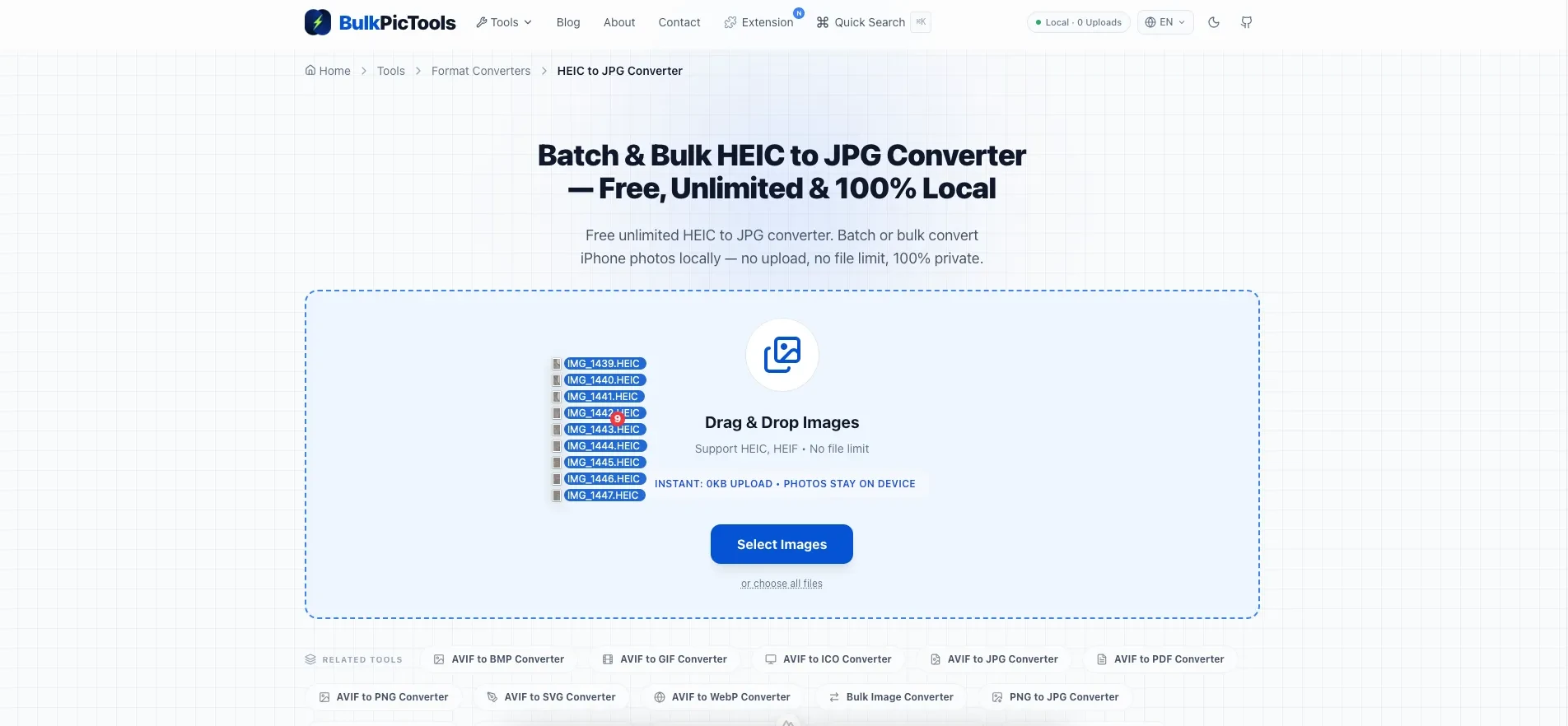
Step 1: Open the Converter
Go to BulkPicTools HEIC to JPG Converter in Safari or Chrome. No account, no download, no install. Works on any macOS version — Ventura, Sonoma, Sequoia, or newer.
Step 2: Drag and Drop
Three options — pick whichever suits you:
- Drag a folder — Drop your iPhone photo folder (e.g.,
DCIM/) into the browser. It recursively finds all.heicand.heiffiles inside. - Drag files — Select multiple
.heicfiles in Finder and drag them in. - Click to browse — Use the file picker if you prefer.
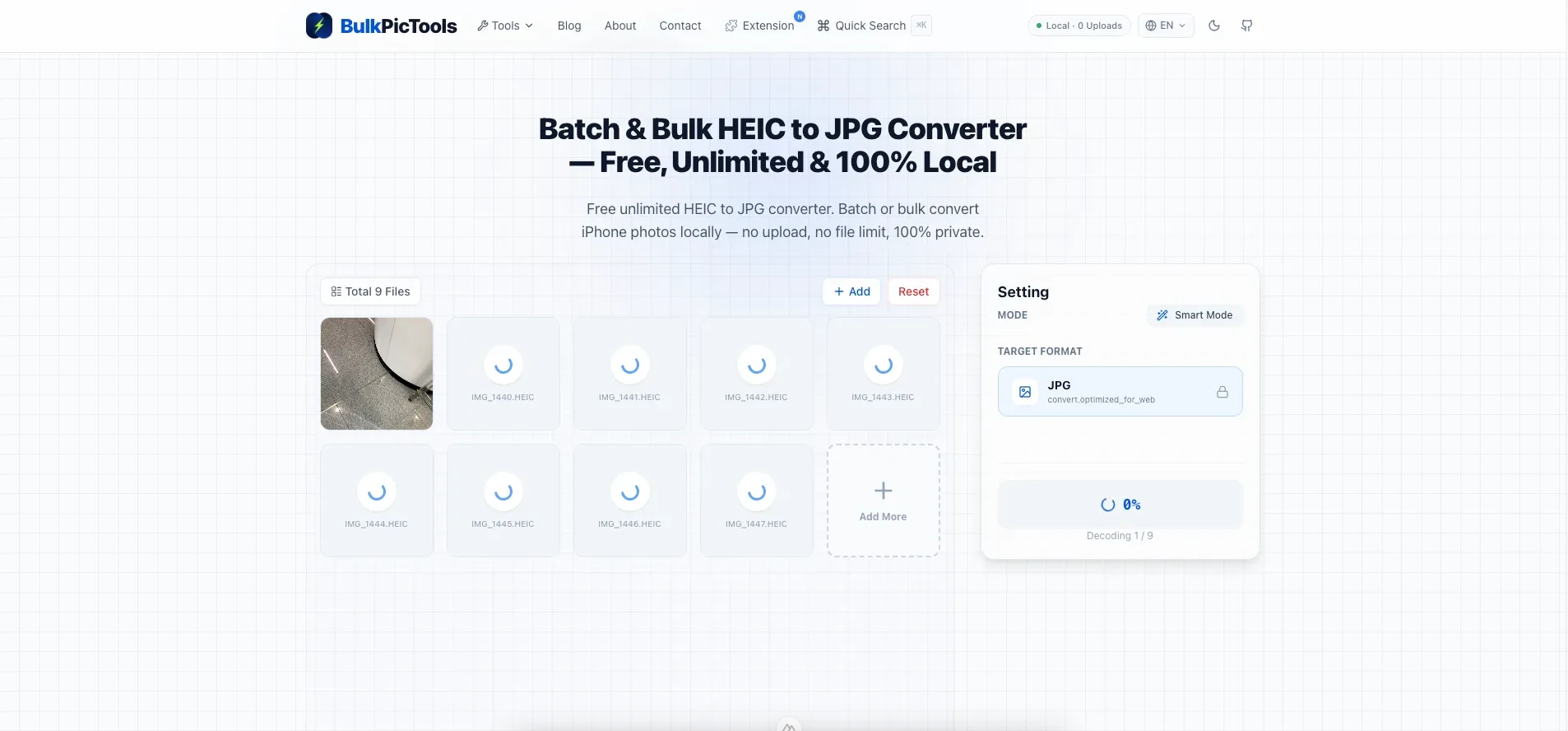
You'll see a preview of all loaded files with original sizes.
Step 3: Convert and Download
Hit "Convert" and watch the progress bar — per-file progress, so you know exactly where you are.
When it's done, "Download All" gives you a single ZIP file. No clicking through 200 download links.
What About iCloud Photos?
If your photos live in iCloud, the files on your Mac might be "optimized" (low-res previews, not the full originals). To get the full-resolution HEIC files:
- Open Photos app.
- Select the photos → File → Export → Export Unmodified Original.
- Choose a destination folder.
Then drag that folder into the converter.
What Happens During Conversion?
| HEIC | JPG | |
|---|---|---|
| Compression | HEVC (H.265) — same as 4K video | JPEG — universal |
| File size | ~1.5 MB (12MP photo) | ~3 MB (1.5–2× larger) |
| Quality loss | — | Minimal at 92% |
| EXIF metadata | ✅ | ✅ Preserved |
| Transparency | ✅ | ❌ (white background) |
| Universal support | Apple ecosystem only | Everything |
The trade-off: JPG files are larger, but they open everywhere — Windows, Android, web forms, email, print shops. That's the whole point.
FAQ
Why do my iPhone photos have the .heic extension?
Since iOS 11, iPhones save photos in HEIC format by default. It produces smaller files than JPG at equivalent quality. You can switch to JPG in Settings → Camera → Formats → Most Compatible — but files will be larger, and you'll fill up your storage faster.
Will converting HEIC to JPG lose quality?
At 92% quality (the default), the difference is invisible to the naked eye. For social media, email, web uploads, and even most printing, you won't notice any loss.
Does this preserve EXIF data (GPS, date, camera settings)?
Yes. All EXIF metadata carries over to the converted JPG files — date taken, GPS location, camera model, exposure settings, everything.
How many HEIC files can I convert at once?
No artificial limit. Your Mac's memory is the only constraint. On 8GB RAM: ~200–500 files. On 16GB+: 1,000+ files in one batch.
Does this work with .heif files too?
Yes. HEIC and HEIF are essentially the same format (HEIC is Apple's specific container for HEIF). The converter handles both.
My Mac opens HEIC fine — why should I convert?
Your Mac can open HEIC because Apple built the decoder into macOS. But Windows, Android, many websites, email clients, and print services can't. Converting to JPG ensures anyone can open your photos, anywhere.
How do I convert HEIC to JPG on Mac without installing software?
Open the HEIC to JPG Converter in Safari or Chrome — it runs entirely in your browser, no download needed. Drag your .heic files in, click Convert, and download the JPGs. The conversion uses WebAssembly, so it works offline after the page loads and your photos never leave your Mac.
The Bottom Line
Your Mac handles HEIC natively — but the rest of the world doesn't. Whether you're uploading to a website, sharing with Windows users, or printing photos, JPG is the format that just works.
Mac's built-in methods either don't batch (Preview), might overwrite your files (Quick Actions, Automator), or need Terminal skills (sips). The HEIC to JPG Converter gives you unlimited batch conversion in your browser — no software, no upload, no risk.
Need smaller JPGs after converting? Try the Bulk Image Compressor to shrink them to any target size — also 100% local, also free.
Part of our HEIC conversion series: Windows guide | JPG vs PNG vs WebP comparison
Have questions or feedback? Contact