
How to Convert HEIC to JPG on Windows 10/11 Free — Bulk, No Software (2026)
💻 Windows won't open your photos? Stop paying for HEIF extensions. Convert 200+ iPhone photos to JPG in seconds—no uploads, 100% private.
Quick Answer: How to bulk convert HEIC to JPG on Windows (free, no software)
- Go to BulkPicTools HEIC to JPG Converter
- Drag and drop your
.heicfiles — as many as you have - Click Convert — all processing runs locally in your browser
- Download your JPGs as a ZIP file in seconds
No upload. No account. Works on Windows 10 and Windows 11.
So, you've just transferred hundreds of photos from your iPhone to your Windows PC, only to find they're all in .HEIC format and nothing will open them.
You're not alone. This is one of the most common frustrations for Windows users. While iPhones use High Efficiency Image Format (HEIC) to save storage space, Windows 10 and Windows 11 still struggle to handle these files natively — without a paid extension or extra software.
If you're searching for how to convert HEIC to JPG on Windows, you usually hit three bad options:
- Pay $0.99 for the official Microsoft HEIF Image Extensions codec
- Install bulky HEIC to JPG converter software that slows down your PC
- Upload your private photos to a cloud server — slow, and a real privacy risk
There's a better way. This guide shows you how to use a free browser-based HEIC to JPG converter that processes everything locally on your device. No uploads. No installs. No limits on how many files you can convert at once.
What Is HEIC and Why Does Windows Struggle With It?
Apple switched iPhone cameras to HEIC format in 2017 with iOS 11. The reason is simple: HEIC files are roughly half the size of JPG at the same visual quality. A photo that takes 4MB as a JPG might only need 2MB as HEIC. For a phone with limited storage shooting thousands of photos, that matters.
The problem is Windows was built around JPG, PNG, and BMP. Microsoft never bundled HEIC support into Windows itself. They offer a workaround — a paid HEIF Image Extensions codec in the Microsoft Store — but it's inconsistent, doesn't cover all HEIC variants, and still doesn't give you a clean way to batch export iPhone photos to JPG.
The cleanest fix: convert HEIC to JPG in bulk, once, and move on. Here's how.
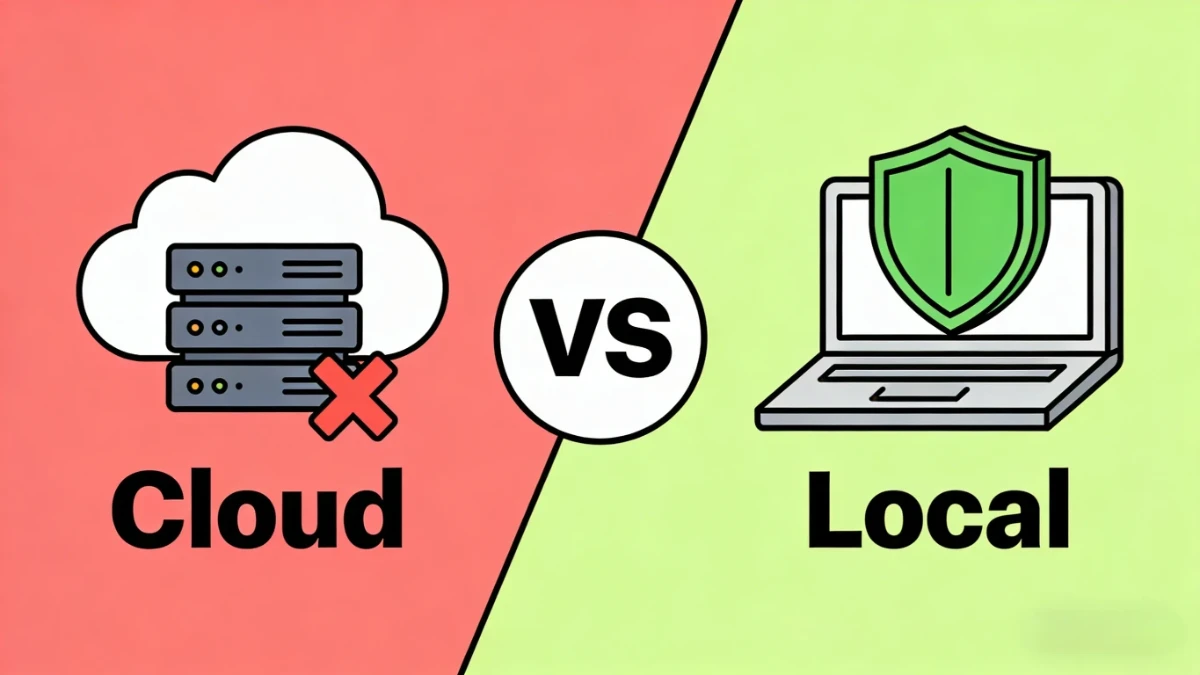
Why Choose a Browser-Based Tool? (The Privacy Advantage)
When you search for an online HEIC to JPG converter, most tools ask you to "Upload" your files. That means your personal photos get sent to a remote server, processed on someone else's hardware, then sent back. It's slow, and it raises real privacy concerns — especially if your camera roll contains photos with GPS location data, personal documents, or images of family members.
BulkPicTools is different. It uses a technology called WebAssembly to run the conversion entirely client-side — inside your own browser.
- 100% Private: Your photos never leave your computer. The conversion happens in browser memory, not on a server.
- No Install Needed: Works instantly in Chrome, Edge, or Firefox — no extensions, no downloads.
- No Upload Waiting: Because nothing travels over the internet, conversion starts immediately regardless of file size.
- No File Limit: Since there's no server cost involved, there's no reason to cap your batch size at 20 or 50 files.
Tutorial: How to Bulk Convert HEIC to JPG in 3 Steps
If you have hundreds of iPhone photos sitting in a folder, converting them one by one is not an option. Here's how to handle the entire batch in one go.
Step 1: Open the Converter
Go to the Free Bulk HEIC to JPG Converter on BulkPicTools. No account required — the tool loads directly in your browser.
Step 2: Drag and Drop Your HEIC Files
Select all your .heic files from your Windows folder and drag them into the tool. You can select an entire folder — 50 files, 200 files, 500 files. There's no hard cap because nothing is being sent to a server. The browser handles everything using your own CPU.
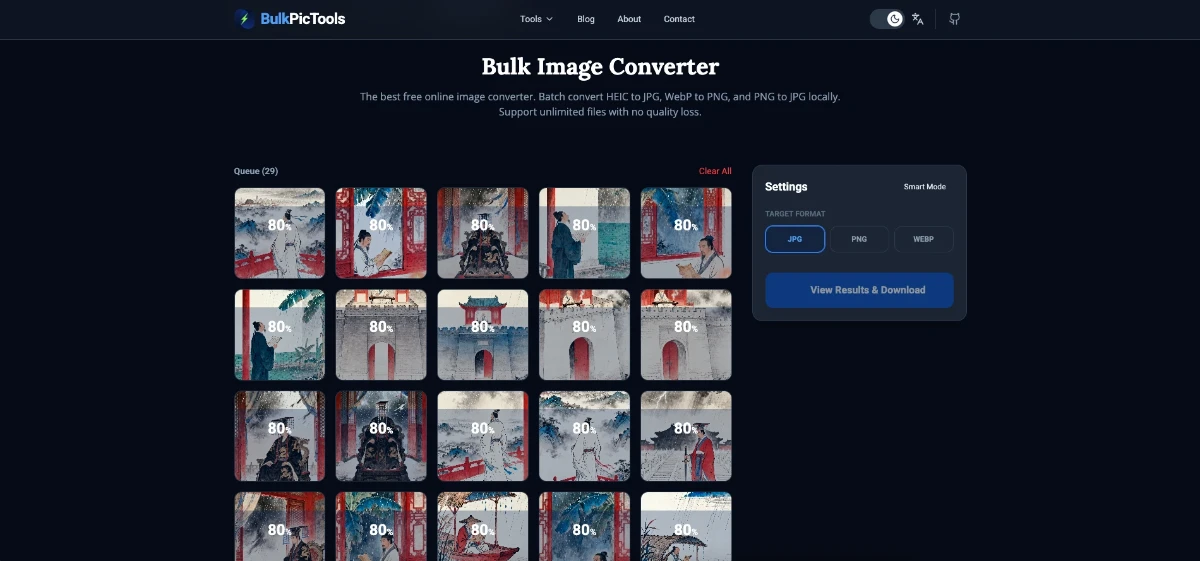
Step 3: Convert and Download
Click the button to start. Because processing runs locally, you'll see it happen almost instantly — no progress bar stalled at 12% waiting for an upload to finish. Once complete, click Download All to save your converted files as a single ZIP.
The ZIP preserves your original filenames, just with a .jpg extension. If you had IMG_0042.heic, you get IMG_0042.jpg — ready to open in any Windows app, upload to Google Photos, or attach to an email.
Pro Tip: This tool preserves image quality during conversion. Your photos stay sharp — no visible degradation from the process itself.
Does This Work on Windows 10 and Windows 11?
Yes. Because BulkPicTools is fully browser-based, it works on any Windows version running a modern browser — Windows 10, Windows 11, and anything older with Chrome or Edge installed.
It also works on Mac, Linux, and Chromebook. There's no OS dependency at all. If your browser can run JavaScript, it can run this converter.
Other Ways to Convert HEIC to JPG on Windows (And Why They're Worse)
There are several methods floating around. Here's an honest comparison:
| Method | Free | Install Required | Files Uploaded to Server | Batch Limit |
|---|---|---|---|---|
| BulkPicTools (browser) | ✅ Yes | ❌ No | ❌ No | Unlimited |
| Microsoft HEIF Extensions | ❌ $0.99 | ✅ Yes | ❌ No | No batch export |
| CopyTrans HEIC | ✅ Limited | ✅ Yes | ❌ No | 100 files (free tier) |
| heictojpg.com | ✅ Yes | ❌ No | ✅ Yes | Limited |
| iMazing Converter | ✅ Yes | ✅ Yes | ❌ No | Unlimited |
| Photos app (manual) | ✅ Yes | ❌ No | ❌ No | One at a time |
If you don't want to install anything and care about privacy, a local browser-based tool is the only option that ticks every box. The Microsoft HEIF extension doesn't even give you a real export workflow — it just lets you preview the files.
What Happens to Your HEIC Files During Conversion?
With most online converters, your files travel to a remote server to be processed, then are supposedly deleted after a few hours. You're trusting a third party with photos that may contain GPS location data, images of your home, your family, your private life.
BulkPicTools runs the entire conversion inside your browser using WebAssembly. Your files never leave your device. There's no network request made for the conversion itself — you can disconnect your WiFi mid-process and it will still complete. This makes it the safest option for sensitive or private photos, and the right choice for anyone converting ID photos, medical records scans, or anything you'd rather not hand to a stranger's server.
Next Step: Optimize Your Converted JPGs
Once you've converted your HEIC files, you might notice that JPGs take up more disk space than the originals — that's normal, since HEIC's compression is more efficient. If you're sharing these photos online, sending by email, or uploading to a website, it's worth a quick optimization pass.
- Need smaller files? Use the Bulk Image Compressor to reduce file size by up to 80% without visible quality loss.
- Need specific dimensions? Use the Bulk Image Resizer to scale images down for social media, email, or web use.
- Worried about GPS data in your photos? iPhone photos embed precise location coordinates in EXIF metadata. Before sharing your converted JPGs online, use the EXIF Editor to strip GPS data from all files in one batch — one click removes location info across your entire folder.
FAQ
Why can't Windows open HEIC files?
Windows doesn't include native HEIC support by default. Microsoft offers a paid HEIF Image Extensions codec through the Microsoft Store, but without it installed, .heic files appear as blank icons or fail to open in Photos and other standard apps. Converting to JPG is the simplest way to make iPhone photos fully compatible with Windows — no codec required.
Will converting HEIC to JPG lose quality?
There is a small quality tradeoff because JPG uses lossy compression, but at standard export settings it's not visible to the eye. A well-converted HEIC-to-JPG file looks identical on screen. The main practical difference is that JPG files are somewhat larger than the original HEIC files, since HEIC's compression is more efficient.
Does HEIC to JPG conversion keep EXIF data (GPS, date, camera settings)?
Yes — BulkPicTools preserves EXIF metadata during conversion, including capture timestamps, camera model, and GPS coordinates. If you want to remove GPS data before sharing photos online, run the converted JPGs through the EXIF Editor after conversion. It strips location data in bulk across all files at once.
How many HEIC files can I convert at once?
There's no file count limit. Drop 10 files or 1,000 files — the converter handles them all in a single batch. The only practical constraint is your computer's available RAM, which is rarely an issue for standard photo libraries.
My iPhone already converts to JPG when I transfer photos — why am I still getting HEIC files?
iPhone has a setting under Settings → Camera → Formats → Most Compatible that automatically converts photos to JPG when transferring to a Windows PC via USB. If this is off, or if you transferred files via a method that bypasses it (AirDrop, direct drag from Finder on a Mac, or some third-party backup tools), you'll get raw HEIC files. The converter above handles both cases regardless.
Does this work with HEIF files as well, or just HEIC?
HEIC and HEIF are closely related — HEIC is essentially Apple's implementation of the HEIF standard. BulkPicTools handles both .heic and .heif file extensions, so files from iPhones, iPads, and some Android devices using HEIF are all supported.
Conclusion
You don't need to pay for a codec, install suspicious software, or upload your photos to a stranger's server. A browser-based converter handles bulk HEIC to JPG conversion in seconds — unlimited files, zero uploads, completely private.
Have questions or feedback? Contact