Prepare a Source Image That Works at Every Size
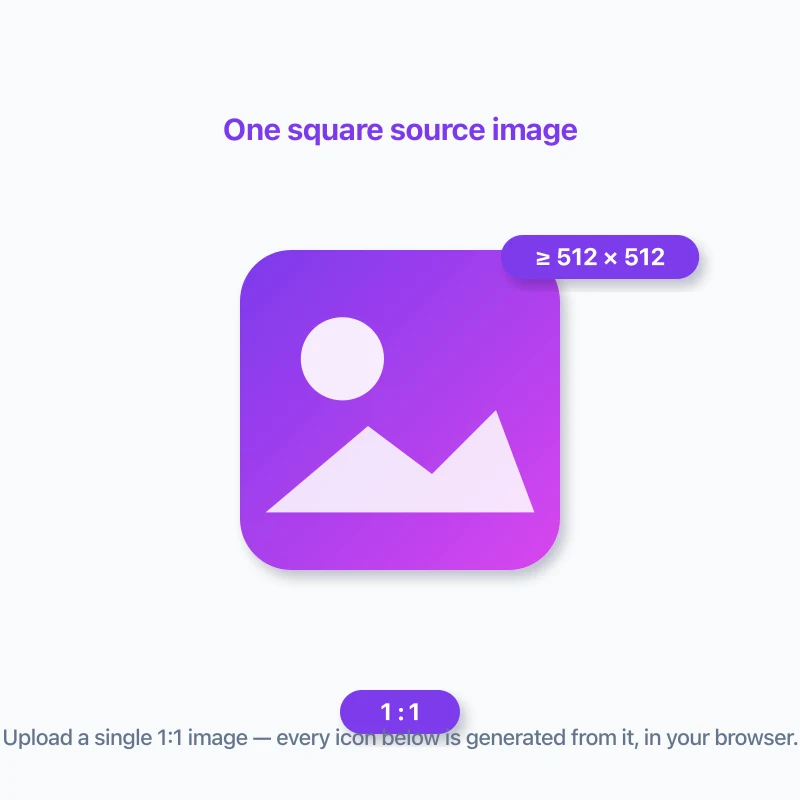
A good app icon must stay recognizable from a tiny 16 × 16 browser favicon to a large 512 × 512 store listing image. Start with a square source image, preferably 1024 × 1024 pixels or larger, with a simple, high-contrast mark in the center.
Avoid small text, thin outlines and visual details that only work at large sizes. They often disappear when the browser or operating system renders your icon at small dimensions. If your logo is rectangular, place it on a square canvas first rather than stretching it.
- Use PNG when your original artwork includes transparency or sharp logo edges.
- Keep the key mark centered and leave visible breathing room around it.
- Use a solid background color if you also need iOS output.
- Preview the smallest favicon size before downloading the final package.
Web Favicons, Apple Touch Icons and PWA Manifest Icons
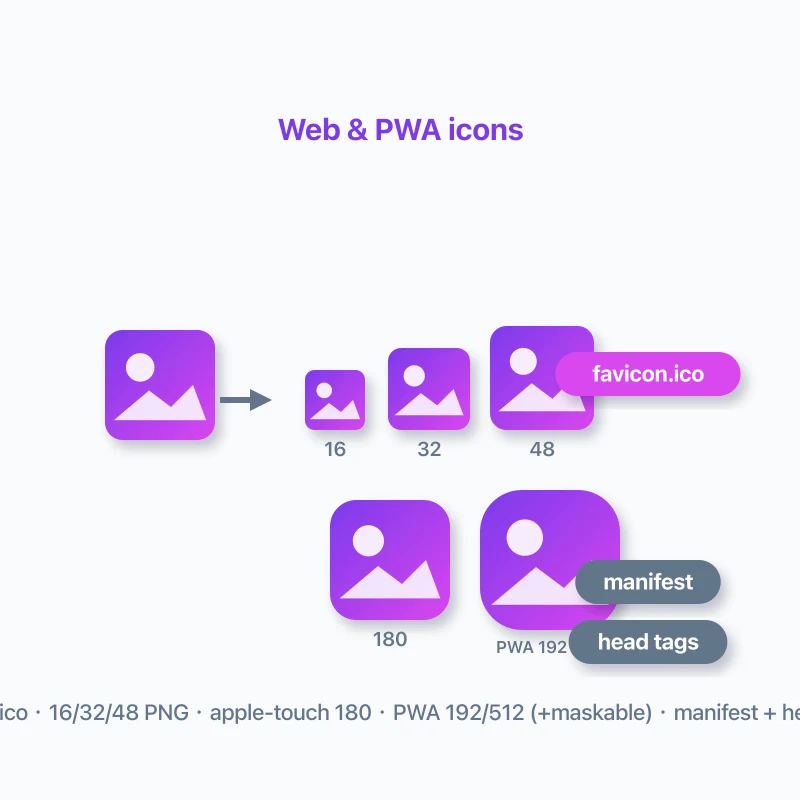
The Web/PWA export covers the browser and installable-web-app assets that are commonly needed in a public folder. It includes PNG favicon sizes for modern browsers, an optional favicon.ico for broader legacy compatibility, and an Apple touch icon for iOS home-screen bookmarks.
For installable PWAs, the package also includes 192 × 192 and 512 × 512 manifest icons. When you enable the maskable option, it adds an icon intended to retain important artwork when a device applies its own icon shape.
Manifest setup is included, not PWA implementation
The generated site.webmanifest and head-tag snippet speed up icon setup. Your app still needs the rest of its PWA configuration, such as the appropriate service worker and installability requirements.
Android Launcher and Adaptive Icon Resources
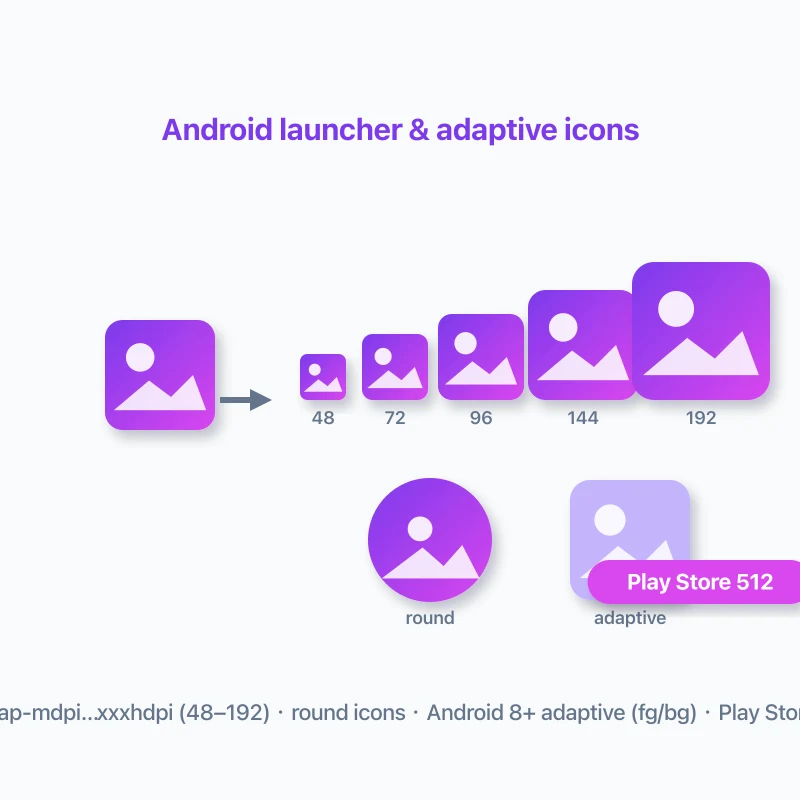
Android devices use density-specific launcher resources so the operating system can select a suitable image for each screen density. The Android export organizes these files into the usual res/mipmap-* directories and can include round launcher variants and a 512 × 512 Play Store listing icon.
Adaptive icons are Android-native launcher resources that combine foreground and background layers through XML definitions. In single-image mode, this generator creates compatible derived resources from your source image and selected background color.
Important: adaptive icons are not automatic artwork separation
A single flat image cannot reliably be split into a true editable logo foreground and independent background layer. Keep your logo centered with generous padding for the best result. For brand-perfect adaptive icons, use separately designed foreground and background artwork in your Android project.
iOS AppIcon.appiconset for Xcode
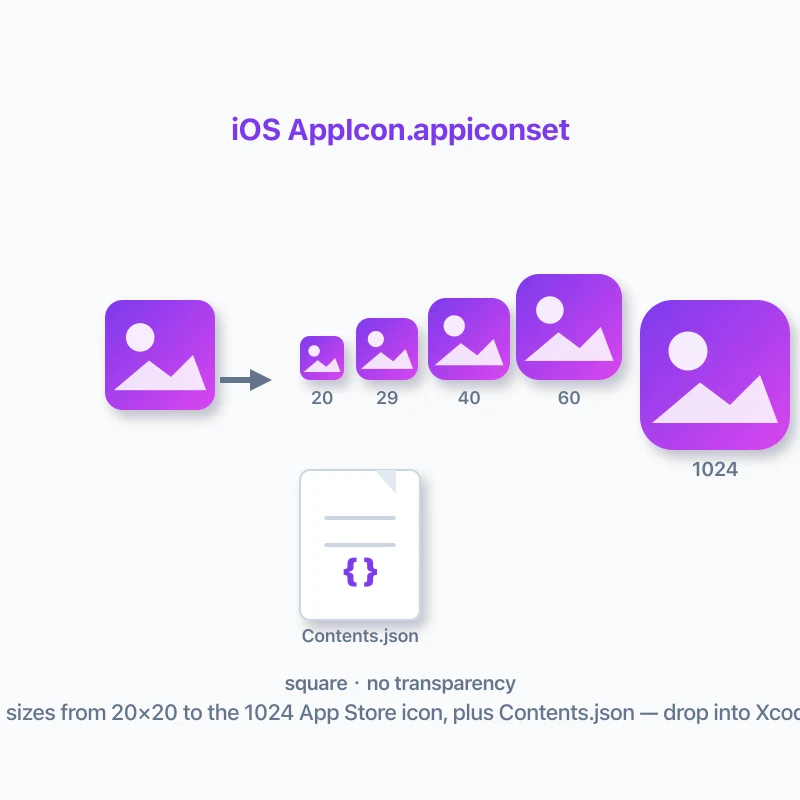
The iOS export creates an AppIcon.appiconset folder designed for an Xcode asset catalog. It includes the image variants required for iPhone, iPad and the App Store, with a Contents.json file that maps every generated image to its expected idiom, point size and scale.
iOS app icons are flattened onto the selected background color. This avoids transparent icon output and keeps the generated asset set aligned with standard App Store icon requirements.
- Do not pre-round your artwork; iOS applies its own icon mask.
- Use a background color that matches your product identity.
- Drag AppIcon.appiconset into Assets.xcassets, then choose it as the target app icon set.
- Review the generated icon in Xcode before submitting a build.
Maskable PWA Icons vs Android Adaptive Icons
These two terms are easy to mix up because both deal with system-controlled icon shapes. They are not interchangeable.
A maskable icon is a Web App Manifest image file that gives installed PWAs extra safe space for launcher masks. An Android adaptive icon is a native Android resource composed of foreground and background layers plus XML references. Enable both when you ship a PWA and a native Android app, but use each file type in its own platform setup.
Your Source Image Stays in Your Browser
This scene is designed for browser-based image processing. The source image is transformed locally in the browser rather than uploaded to a remote image-processing server, which is useful when you are preparing unreleased product artwork, client logos or internal app assets.
The page itself still loads the application code and processing resources from the website. Local processing means the image data does not need to be sent away for server-side conversion.