
Merge Images Online Free — AI Image Merger, No Upload
🖼️ Need to combine photos? Drag and drop them in — merge side by side, stacked, or in a grid.
You need to put two photos side by side. Or stack five product images into one collage. You Google "merge images online" and find a dozen tools — but every single one wants you to upload your files to their server first.
That's a problem when the images are client deliverables, internal documents, or anything you'd rather not hand over to a random website.
BulkPicTools merges images directly in your browser. Nothing gets uploaded. It's free, it handles batches, and it takes about 30 seconds.
How to Merge Two or More Images — 3 Steps
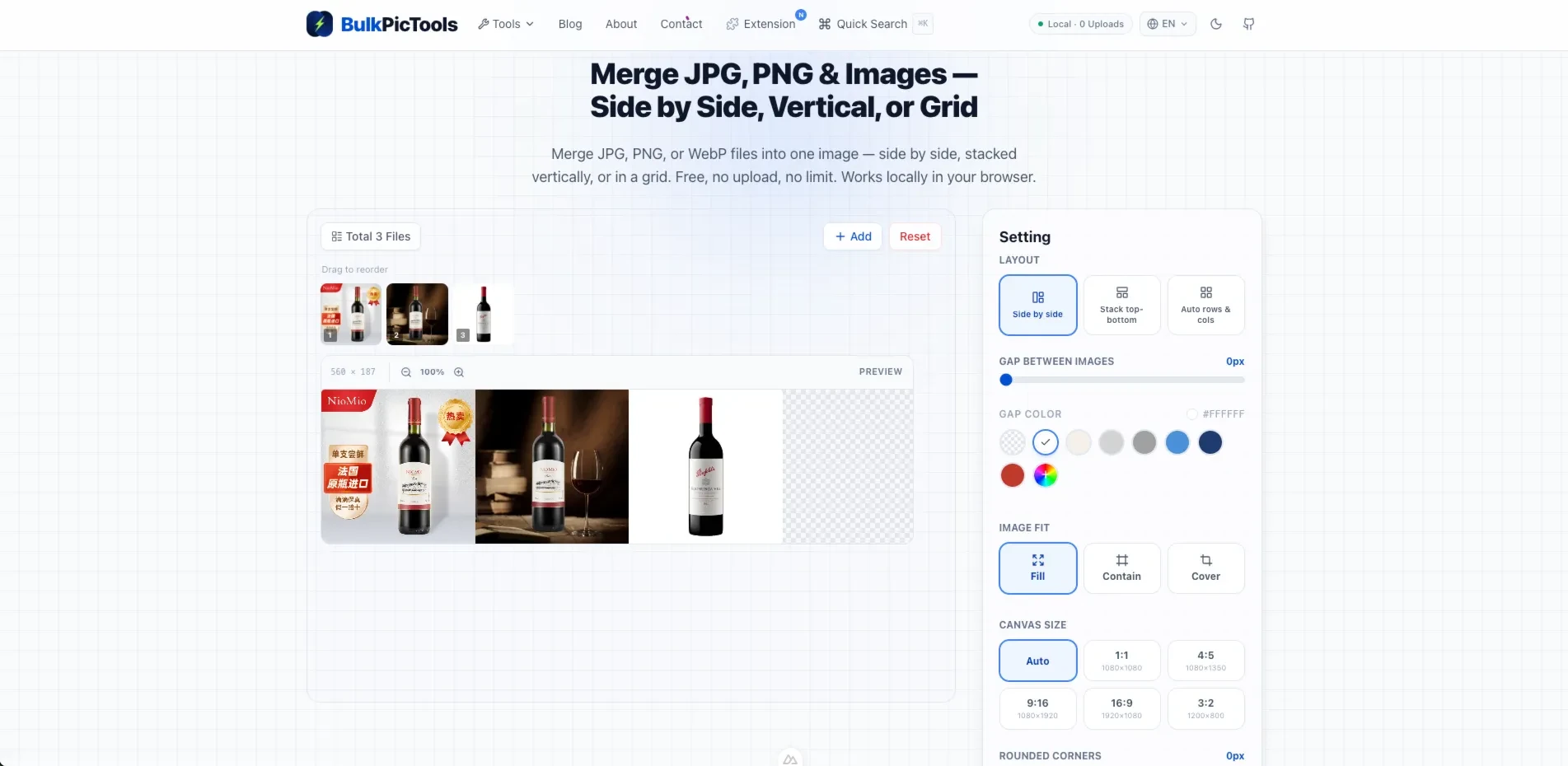
1. Open the tool
Go to BulkPicTools Merge Images in any browser. No account, no install. Works on desktop and mobile.
2. Upload your images
Drag and drop your files, or click to browse. You can add as many images as you want — JPG, PNG, WebP, even animated GIFs. Reorder them by dragging if the sequence matters.
3. Choose layout and download
Pick how you want them arranged:
- Side by side — images placed horizontally
- Stacked — images placed vertically
- Grid — images arranged in rows and columns
Hit "Merge," and the result downloads immediately. The whole process stays in your browser — no files leave your device.
Merge Modes: Side by Side, Stacked, or Grid
Different layouts work for different situations.
Side by side works for before/after comparisons, product showcases, or placing two images for a blog post. If you're making a "this vs. that" visual, this is the one.
Stacked is better for vertical content — Instagram stories, Pinterest pins, or combining screenshots into a single tall image. This is the "长图拼接" that a lot of people search for.
Grid handles multi-image layouts. Got six product photos for an Etsy listing? Nine vacation photos for a collage? Grid mode arranges them neatly without you fussing over pixel alignment.
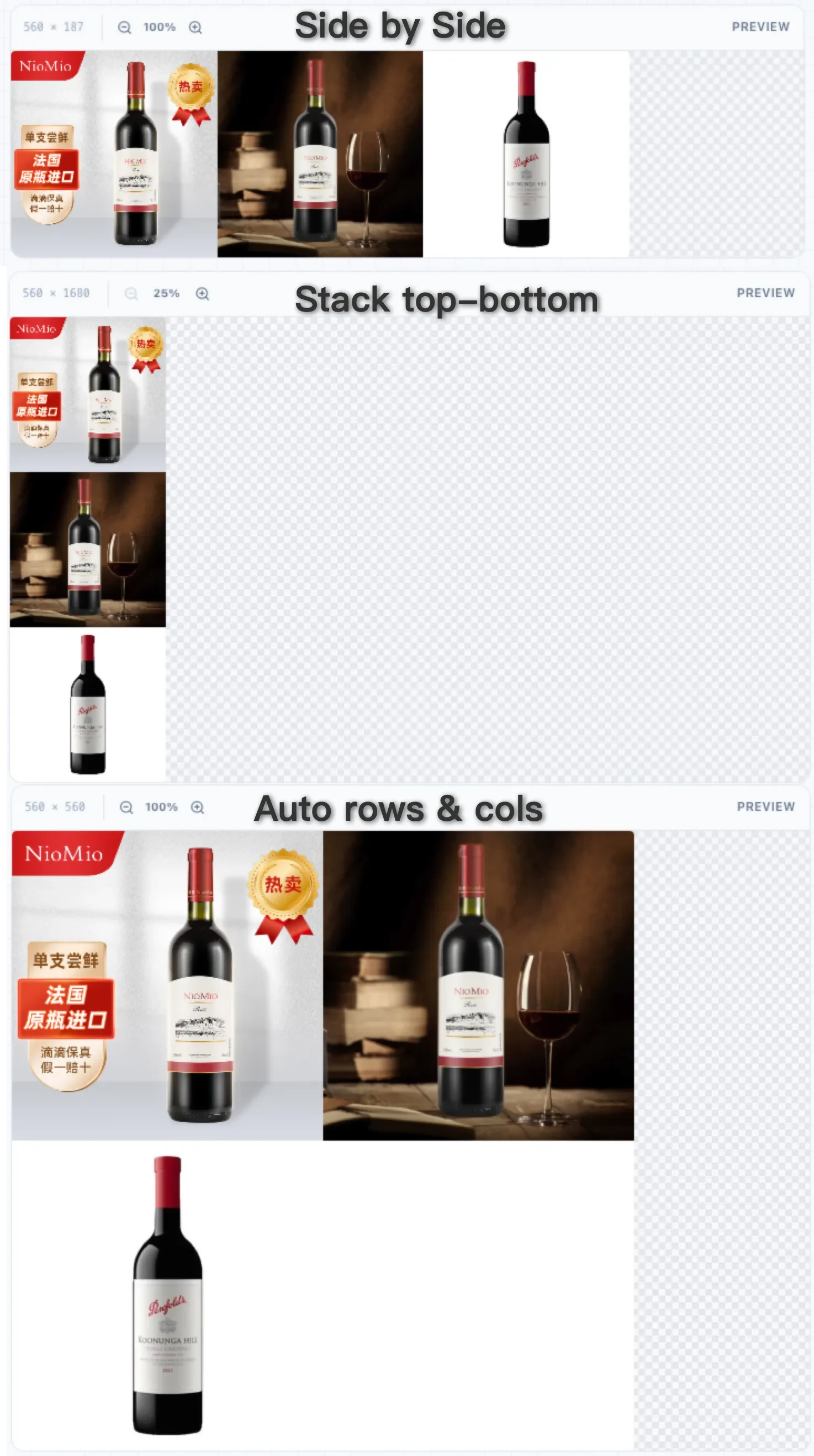
The tool auto-detects image dimensions and adjusts spacing so the result looks clean. You don't need to manually calculate pixel widths.
Bulk Merge — Combine Multiple Images at Once
Most online image mergers handle two, maybe three images. Try to merge ten, and you're either hitting a limit or waiting through ten separate uploads.
BulkPicTools doesn't have a file count limit. Upload 20 images, 50 images, as many as you need. The processing happens locally, so speed depends on your device — not a remote server.
This matters for:
- E-commerce sellers combining product angles into one listing image
- Bloggers creating photo collages from an event
- Social media managers building multi-image posts
- Anyone who needs to merge a batch of screenshots into one document
Merge JPG vs. Combine JPG — What's the Difference?
Nothing, really. "Merge JPG" and "combine JPG" mean the same thing: taking multiple JPG files and putting them into a single image file. The terms are interchangeable, and Google treats them as equivalent search intent.
The only technical distinction worth knowing: merging usually means placing images side by side or stacked (each image stays intact within the layout). Combining sometimes implies blending or overlaying (images on top of each other with transparency). BulkPicTools does the former — clean placement, no blending.
How Does BulkPicTools Compare to Other Image Mergers?
| BulkPicTools | Pinetools | Canva | Photoshop | |
|---|---|---|---|---|
| Free | ✅ | ✅ (limited) | Freemium | ❌ |
| No upload | ✅ | ❌ | ❌ | ✅ |
| Bulk merge | ✅ | ❌ | ✅ | ✅ |
| Mobile friendly | ✅ | ⚠️ | ✅ | ❌ |
| Grid layout | ✅ | ❌ | ✅ | ✅ |
| Privacy | Files never leave device | Files uploaded | Files uploaded | Files stay local |
Pinetools is popular — a lot of people search for it by name. But it requires uploading your images to their servers, and it doesn't handle batches. For a quick one-off merge, it works. For anything involving sensitive files or multiple images, BulkPicTools is the better choice.
Canva is fine if you're already paying for it and want design flexibility. But for a simple merge task, it's overkill — and it requires an account.
Photoshop is the nuclear option. If you're merging images as part of a larger editing workflow, sure. For a standalone merge task? It's like renting a crane to move a chair.
Frequently Asked Questions
How do I merge two JPG files into one?
Upload both JPGs to the Merge Images tool, choose "side by side" or "stacked," and click Merge. The combined image downloads instantly. No file count limit, no upload to any server.
Can I merge images online without uploading?
Yes. BulkPicTools processes all images locally in your browser using WebAssembly. Your files never leave your device — not even for a moment. This is different from most online mergers, which send your files to a remote server for processing.
How do I merge multiple images into one PDF?
BulkPicTools merges images into a single image file (JPG or PNG), not PDF. If you need a PDF, merge the images first, then convert the result to PDF using your computer's built-in print-to-PDF function (Ctrl+P → Save as PDF on most systems).
What's the best free image merger?
For privacy and speed, BulkPicTools — it's the only free merger that processes everything locally without uploading. For design-heavy layouts where you need text overlays and custom backgrounds, Canva works but requires an account and uploads your files.
Can I merge images side by side?
Yes. The "side by side" layout places your images horizontally in a row. Upload your files, select the side-by-side option, and merge. The tool auto-aligns heights so the result looks balanced.
The Next Step
If you've been switching between Pinetools, Canva, or random online mergers — try BulkPicTools Merge Images once. It's faster (no upload wait), more private (files stay local), and handles batches without limits.
And if the merged result is too large for email or social media, the Image Compressor can shrink it down without visible quality loss. Two tools, two steps, problem solved.
Have questions or feedback? Contact