
How to Remove Unwanted Objects from Photos — 5 Best Free Tools
Remove unwanted objects from photos — 100% local, no upload, no limits.
You took the perfect shot. Great light, good composition, everyone's eyes are open. Then you zoom in and see it — a stranger walking through the background, a trash can ruining the landscape, or a text overlay you can't get rid of.
Removing unwanted objects from photos used to mean opening Photoshop and spending 20 minutes with the clone stamp. Now there are free tools that do it in seconds with AI. But most of them upload your photo to a remote server in the process. For vacation photos, who cares. For client work, product shots, or anything you'd rather not hand to a third party — that matters.
Here are 5 free tools that remove objects from photos, tested on the same image so you can compare results side by side.
The tools we tested
| Tool | How it works | Privacy | Free limit |
|---|---|---|---|
| BulkPicTools | Paint over object → AI fills area | Fully local, no upload | Unlimited |
| Cleanup.pictures | Paint over object → AI fills area | Uploads to server | 5 images/month |
| SnapEdit | Tap object → AI removes | Uploads to server | Limited free tier |
| PhotoRoom | Auto-detect + remove | Uploads to server | Limited exports |
| Photoshop | Content-Aware Fill / Generative Fill | Local (desktop app) | Paid ($20.99/mo) |
Real test: same photo, 5 tools
We took a photo with a visible object in the background and ran it through each tool. Here's what happened.
Original photo:

BulkPicTools result:

Cleanup.pictures result:
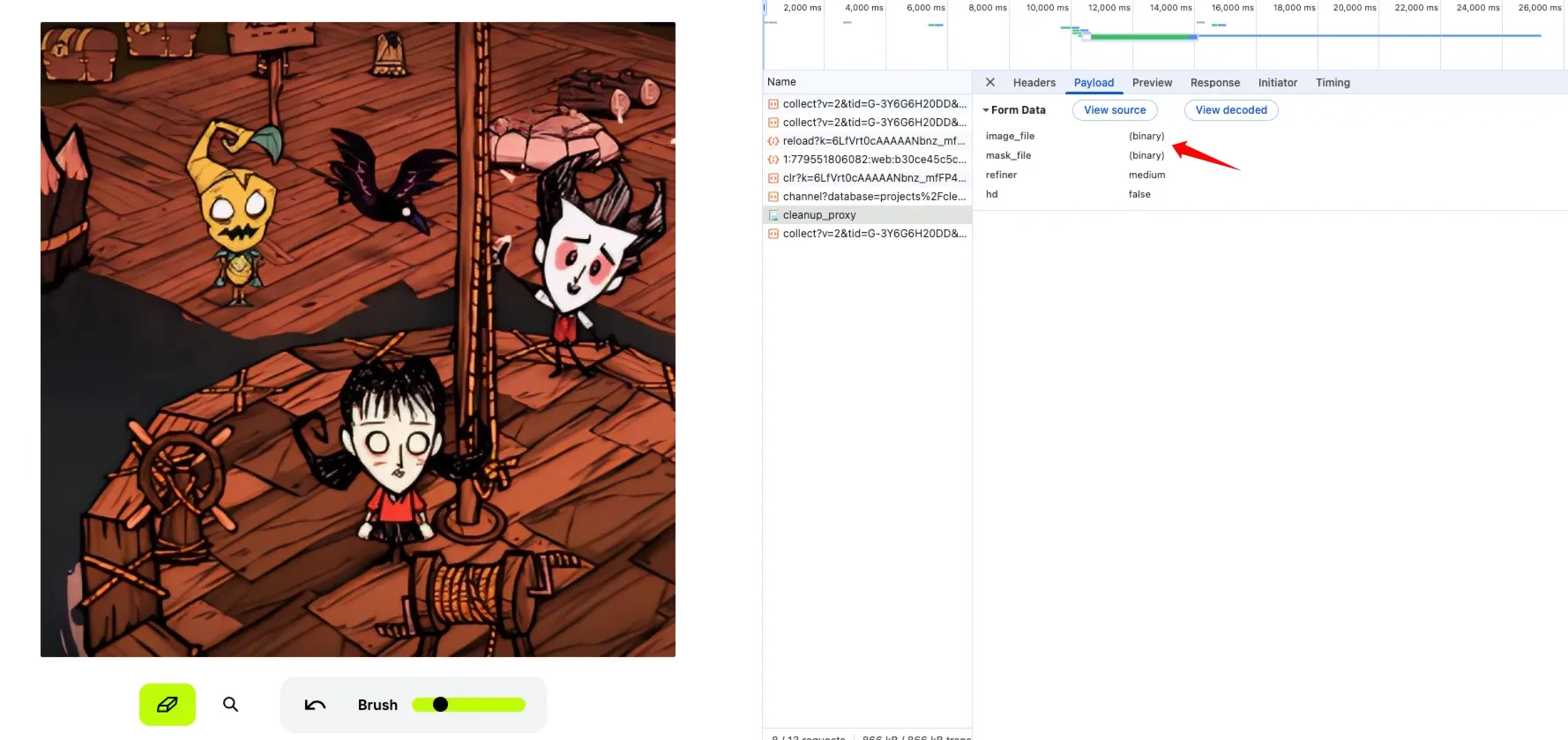
Both tools produced clean results on this test image. The AI inpainting filled the area convincingly, and you'd need to zoom in closely to spot any difference. For most use cases — social media posts, casual photography, quick edits — either tool works well.
The real difference isn't quality. It's what happens to your photo before and after processing.
Where the tools actually differ
Privacy: local vs upload
BulkPicTools runs the AI model entirely in your browser using WebAssembly. Your photo is loaded into your browser's memory, processed there, and downloaded — it never leaves your device. You can verify this yourself: open your browser's DevTools, go to the Network tab, and process an image. You'll see zero file upload traffic.
Cleanup.pictures, SnapEdit, and PhotoRoom all upload your photo to their servers, process it there, and send back the result. These services typically delete your file after processing (Cleanup.pictures says within 24 hours), but "they delete it after" and "it was never sent anywhere" are different guarantees.
For a meme you're posting on Discord, the upload doesn't matter. For a product photo under NDA, a client's headshot, or a scan of a personal document — the distinction is real.
Free limits
This is where the practical difference hits most people. Cleanup.pictures gives you 5 free images per month. SnapEdit and PhotoRoom have similar restrictions. If you're cleaning up a batch of vacation photos — say, removing tourists from 15 beach shots — you'll hit the paywall fast.
BulkPicTools has no per-image limit. Process 1 image or 100, it's the same experience. The tradeoff is that the AI model (~50MB) downloads once on your first visit and caches locally. After that initial load, processing is instant.
Batch processing
Only BulkPicTools supports true batch processing for object removal. Upload multiple photos, paint over the objects in each one, and process them all. The other tools are strictly one-image-at-a-time.
Photoshop supports batch processing through Actions, but requires a paid subscription and more setup.
How to remove objects from photos with BulkPicTools
Step 1 — Upload your photo
Go to the Remove Object tool and drag in your image. JPG, PNG, and WebP are all supported. The image loads locally — nothing is uploaded.
Step 2 — Paint over the object
Use the brush tool to paint over the object, person, or text you want removed. Adjust the brush size for precision — use a smaller brush for text and a larger one for people or vehicles. The painted area turns red so you can see exactly what will be removed.
Step 3 — Let the AI remove it
Click "Remove." The AI analyzes the surrounding pixels and fills the painted area with realistic texture. For complex backgrounds, you can paint over remaining artifacts and run it again — each pass improves the result.
Step 4 — Download your clean image
The result downloads at the original resolution. No watermark, no signup, no "upgrade to remove the logo."
Tips for cleaner results
- Paint over the center of the object, not just the edges. The AI segments the full shape from the painted area.
- Use multiple passes for large objects. If something covers more than 30% of the frame, paint over different parts in separate passes.
- Uniform backgrounds work best. Sky, water, walls, and simple textures produce the cleanest fills. Complex backgrounds (busy streets, foliage) may show minor artifacts.
- Zoom in to check. What looks clean at thumbnail size might show artifacts at full resolution. Always zoom in before downloading.
Frequently asked questions
How do I remove a person from a photo?
Paint over the person you want removed. The AI uses segmentation to detect the person's outline and reconstructs the background behind them. Works for tourists in landscape photos, passersby in street shots, and unwanted figures in group photos. For best results, make sure the painted area covers the entire person with a small margin around the edges.
Can I remove text from an image without Photoshop?
Yes. Paint over the text area — the AI segments the text region and reconstructs the underlying texture. No Photoshop or design skills needed. Works for captions, date stamps, watermarks, subtitles, and any text burned into images. Small text on simple backgrounds vanishes completely.
Is there a truly free tool to remove objects from photos?
BulkPicTools is genuinely free with no per-image limit. The AI model runs in your browser and there's no account, no watermark, no "5 free images" restriction. The tradeoff is the one-time model download (~50MB) on your first visit. After that, it's cached and processing is instant.
How to remove objects from photos on iPhone?
Open Safari and go to the BulkPicTools object remover. It works on mobile browsers — paint over the object with your finger and the AI removes it. No app download required. Note that processing may be slower on older phones since the AI model runs locally on your device.
What objects can I remove from photos?
People, animals, vehicles, power lines, trash cans, signs, furniture, text overlays, emoji stickers, watermarks, timestamp labels, brand logos, and any other unwanted element. The AI works on anything you can paint over. Objects with clear edges and uniform backgrounds behind them produce the best results.
Does removing objects reduce image quality?
No. The AI fills the painted area by reconstructing pixels from the surrounding context. The output image has the same resolution and dimensions as the original. The only quality factor is the export format — JPG applies standard JPEG compression, while PNG is lossless.
Which tool should you use?
If you're removing one object from one photo and don't mind uploading — Cleanup.pictures works fine. The results are good and the interface is simple.
If you're working with sensitive images, need batch processing, or just don't want to hit a paywall after 5 images — BulkPicTools' object remover does the same job without any of those limitations. The first load takes a few seconds while the AI model downloads, but after that it's just as fast as the server-based tools.
For professional retouching with pixel-level control — Photoshop is still the most powerful option. But for the "remove this person from my vacation photo" use case that covers 90% of what people actually need, the free tools handle it well.
All tests were conducted in August 2026. Tool features and free limits may change over time.
Have questions or feedback? Contact