
Upscale Image to 4K Free — AI Upscaler, No Upload, No Signup
🔍 Need to upscale a photo? Drop it in — AI enhances it to 4K in seconds, right in your browser.
You have a photo that looks fine on your phone. Try to print it, use it in a presentation, or zoom in — and it's a blurry mess. The resolution is too low, and there's no higher-quality version anywhere.
For years, the only fix was to accept the blur or find the original file. AI upscalers changed that. They don't just stretch the image — they reconstruct missing detail. And you can do it right in your browser, without uploading anything to a server.
What Is AI Image Upscaling?
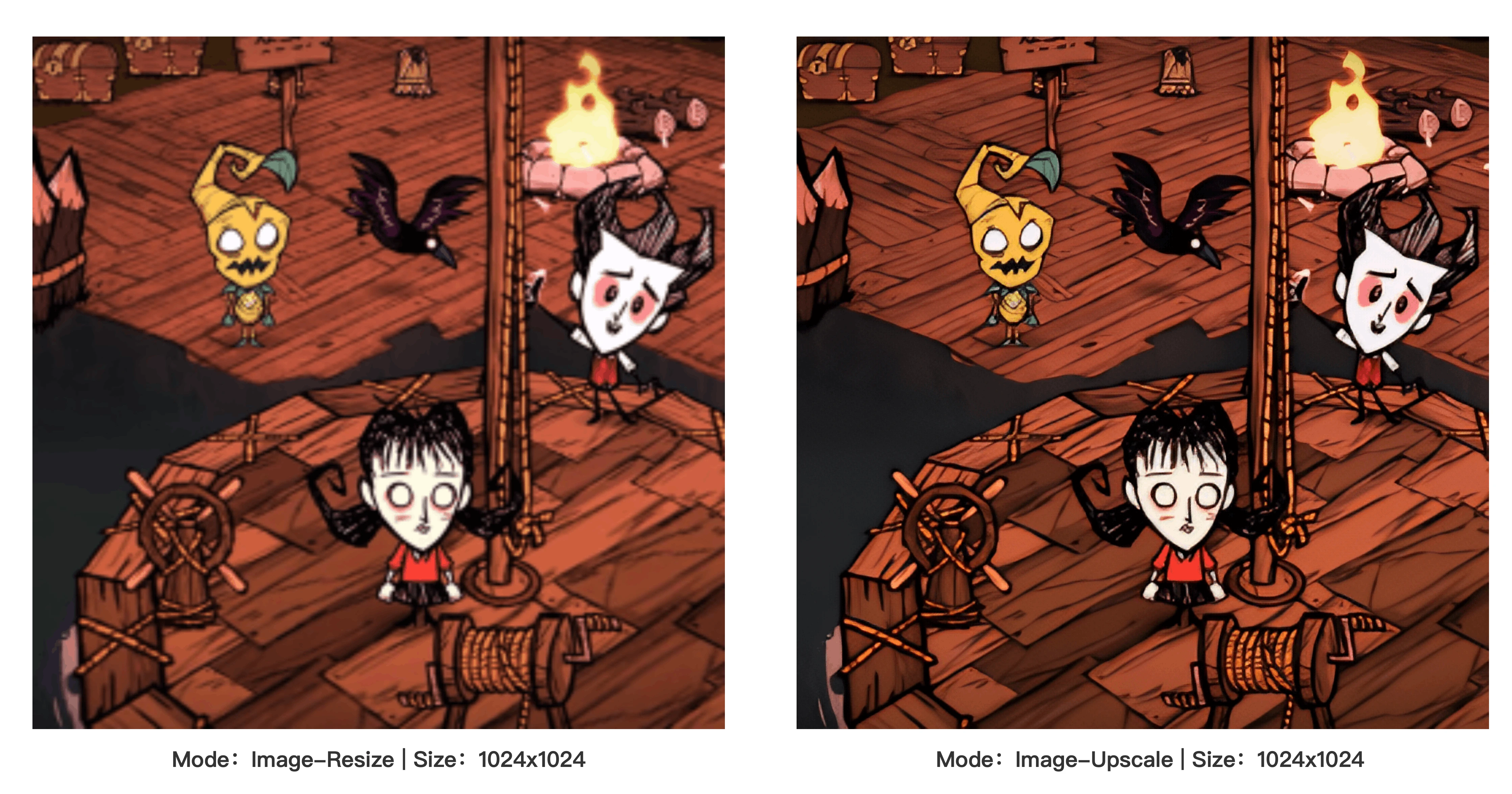
Traditional resizing makes pixels bigger. If you double a 500×500 image to 1000×1000, each pixel becomes four pixels — same information, more blur. The math is simple, and the result looks bad.
AI upscaling works differently. A neural network trained on millions of image pairs learns what detail should exist between the pixels. When you upscale a low-res photo, the model predicts and generates those missing details — sharper edges, finer textures, clearer text. The output doesn't just look bigger. It looks better.
The model BulkPicTools uses is called SPAN (Structure-Preserving Attention Network). It runs entirely in your browser via WebAssembly. Your photo never leaves your device — the processing happens locally, on your machine, using your CPU and GPU.
How to Upscale an Image to 4K — 3 Steps
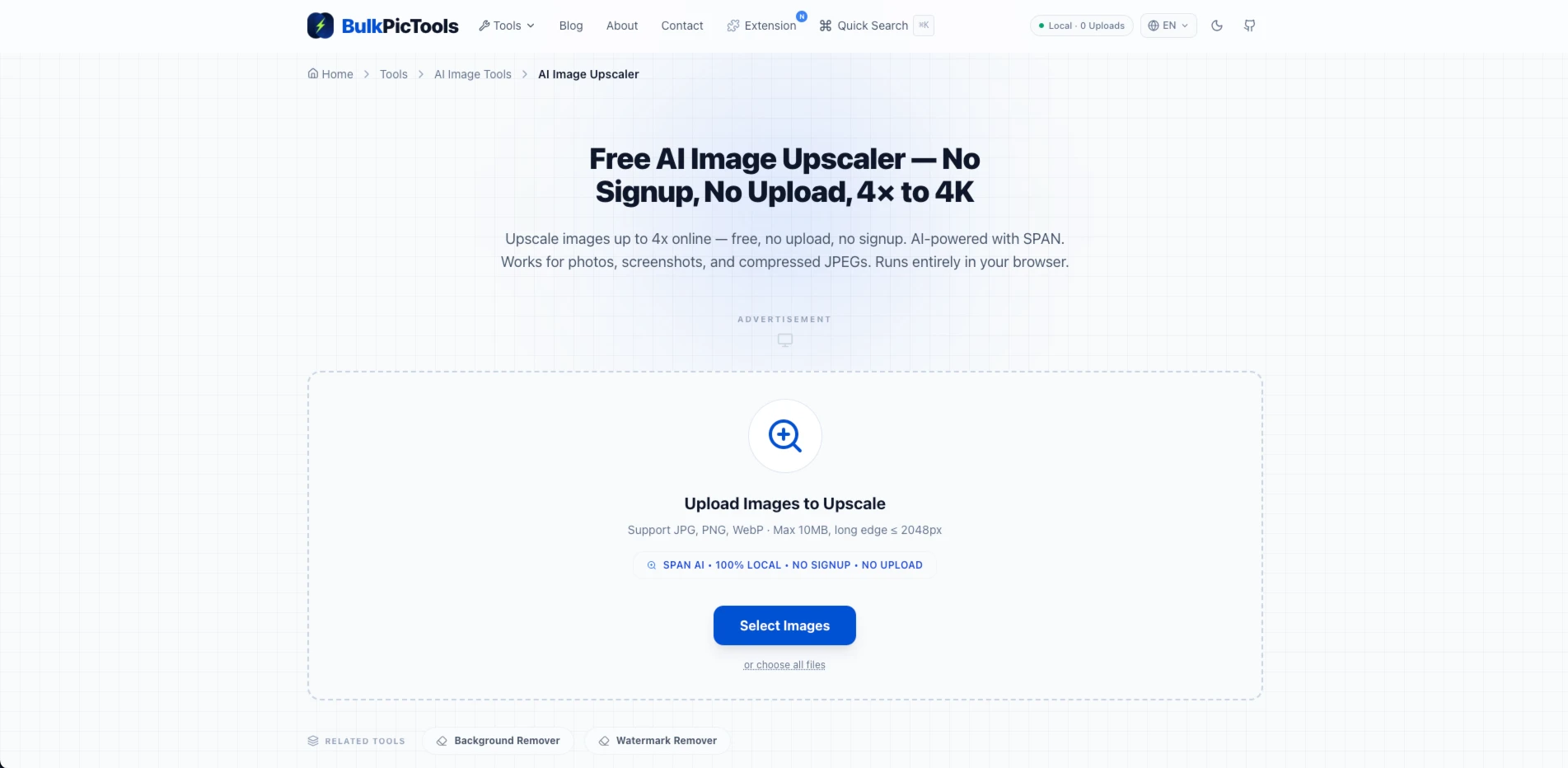
1. Open the tool
Go to BulkPicTools AI Image Upscaler in any browser. No account needed, no install. Works on desktop and mobile.
2. Upload your image
Drag and drop your photo, or click to browse. You can upload multiple files at once for batch processing. JPG, PNG, WebP — all common formats supported.
3. Choose your upscale factor and download
Pick 2x or 4x. Hit "Upscale." The AI processes your image in the browser — usually takes 10–30 seconds depending on the file size and your device. Download the result.
That's it. No server, no watermark, no "sign up to download."
Upscale vs. Resize — What's the Difference?
This is the question most people get wrong, and it matters.
| Resize | AI Upscale | |
|---|---|---|
| What it does | Stretches pixels to fill a larger canvas | Generates new detail based on learned patterns |
| Quality | Blurry, pixelated, soft edges | Sharper edges, reconstructed textures |
| Best for | Minor adjustments (10%–20% size change) | Significant enlargement (2x–4x or more) |
| Speed | Instant | 10–30 seconds per image |
| File size | Larger (more pixels, same information) | Larger (more pixels, more detail) |
If you're enlarging a photo by 50% or less, regular resize might be fine. For anything bigger — especially if the source is already small — AI upscaling is the only option that produces usable results.
When Should You Upscale to 4K?
Not every image needs to be 4K. But there are specific situations where upscaling solves a real problem:
Printing photos or posters. A 1080p image looks fine on screen. Print it at 300 DPI on an A3 poster, and every pixel shows. Upscaling to 4K (3840×2160) gives you enough resolution for sharp prints up to poster size.
E-commerce product images. Shopify, Amazon, and Etsy all recommend high-resolution product photos. If your supplier sent you 800×600 images and you need 2048×2048 for the listing, AI upscaling gets you there without hiring a photographer.
Presentations and slides. A logo or screenshot that looks sharp on your laptop turns into a blurry mess when projected on a 4K screen. Upscale it before you present.
Social media thumbnails. YouTube recommends 1280×720 minimum for thumbnails. If your source image is smaller, upscaling prevents the fuzzy look that screams "low effort."
Restoring old photos. Scanned photos from the 2000s are often 640×480 or smaller. AI upscaling can bring them to modern resolution while recovering detail you didn't think was there.
Bulk Upscale — Process Multiple Images at Once
Most online upscalers force you to upload and download one image at a time. If you have 50 product photos to upscale, that's 50 separate uploads, 50 processing waits, 50 downloads.
BulkPicTools handles batch upscaling in one go. Upload your entire folder, select the upscale factor, and download all results at once. The processing happens in parallel — your browser handles multiple images simultaneously using Web Workers.
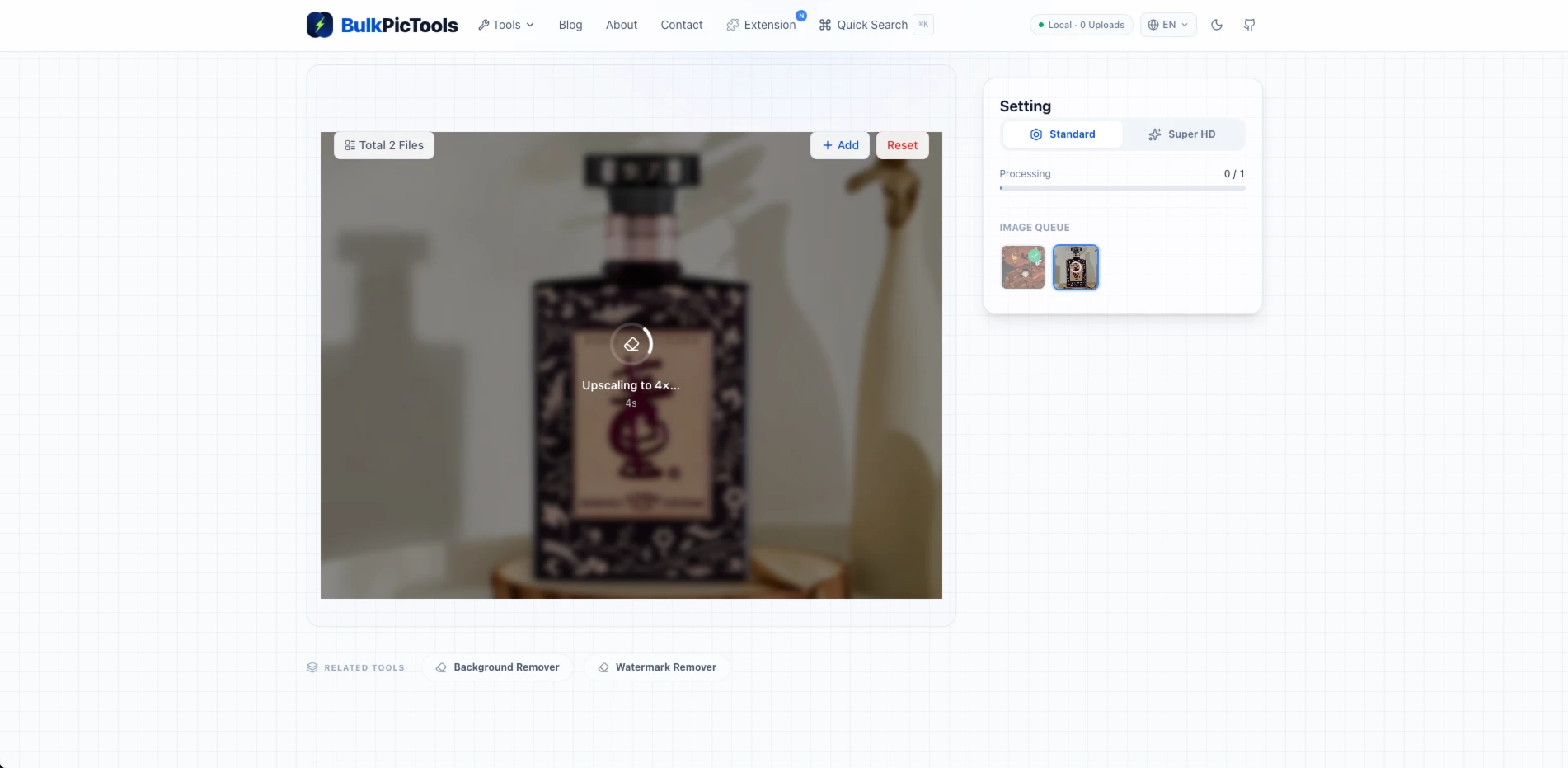
This matters most for e-commerce sellers and content creators who work with batches of images regularly.
Frequently Asked Questions
Does AI upscaling actually add detail, or just sharpen the image?
It genuinely adds detail. The SPAN model is trained on pairs of low-resolution and high-resolution images. When it processes your photo, it predicts what the missing pixels should look like based on patterns it learned during training. Sharpening only increases edge contrast — AI upscaling creates new information that wasn't in the original file.
Is the AI image upscaler really free? No hidden limits?
Yes, it's free. No signup, no watermark, no daily limit. You can upscale as many images as you want. The processing happens in your browser, so there's no server cost for BulkPicTools to pass on to you.
What's the maximum resolution I can upscale to?
The tool supports up to 4x enlargement. If your source image is 1000×1000, the output can be 4000×4000. For most use cases — printing, e-commerce, social media — 4x is more than enough to hit 4K resolution.
Does it work on phone photos, screenshots, and drawings?
Yes. The AI model works on any raster image — photos, screenshots, illustrations, AI-generated art. It performs best on natural photos (landscapes, portraits, product shots) where there's texture and detail to reconstruct. Simple graphics with flat colors and sharp edges also upscale well.
Is my photo uploaded to a server?
No. BulkPicTools uses WebAssembly to run the SPAN AI model directly in your browser. Your image stays on your device the entire time — it's never transmitted anywhere. This also means it works offline after the page loads.
How does this compare to paid upscalers like Topaz or Let's Enhance?
Paid desktop tools like Topaz Gigapixel often produce slightly better results on very challenging images (extremely low-res, heavy noise). But for the vast majority of use cases — product photos, social media images, presentation graphics — the difference is negligible. BulkPicTools is free, requires no install, processes images locally, and handles batches. For most people, it's the better choice.
The Bottom Line
AI upscaling isn't magic — but it's close. A blurry 500×300 photo can become a sharp, usable 2000×1200 image in under 30 seconds. No Photoshop, no subscriptions, no uploading your photos to someone else's server.
If you have a low-resolution image that needs to be bigger and sharper, try the AI Image Upscaler. It's free, it runs in your browser, and it handles batches. Drop your photo in and see what the AI reconstructs.
And if you're working with images that need more than just upscaling — compressing for email, converting formats, cropping for specific platforms — BulkPicTools has 60+ tools that all work the same way: locally, privately, no upload required.
Have questions or feedback? Contact