Logo
BulkPicTools

Batch Convert, Resize and Compress Images in One Workflow

Convert, resize, and compress a batch of images in one workflow. Prepare files for websites, blogs, sharing, and uploads — locally in your browser.

Local Processing Grátis
Upload Your Images

Drag and drop files or click to select. Supports JPG, PNG, WebP, and more.

Bulk Image Resizer
Bulk Image Converter
Bulk Image Compressor
Online EXIF Editor

Principais recursos do Batch Image Processing Workflow

Connected Image Workflow

Chain conversion, resizing, compression, and optional metadata cleanup into one connected processing flow.

Process Multiple Images Together

Apply the same enabled processing steps to a batch of images instead of handling each file separately.

Adjustable Processing Steps

Choose the output format, maximum dimensions, compression settings, and whether to keep or remove image metadata.

Download the Completed Batch

Review the processed files, download individual results, or collect the batch in a ZIP archive.

Browser-Based Processing

Image processing runs in your browser, so image files do not need to be uploaded to a remote image-processing server.

What happens to each image

Every file flows through the same three conversions — resize, convert and compress — in one pass.

  1. Resize to your dimensions1

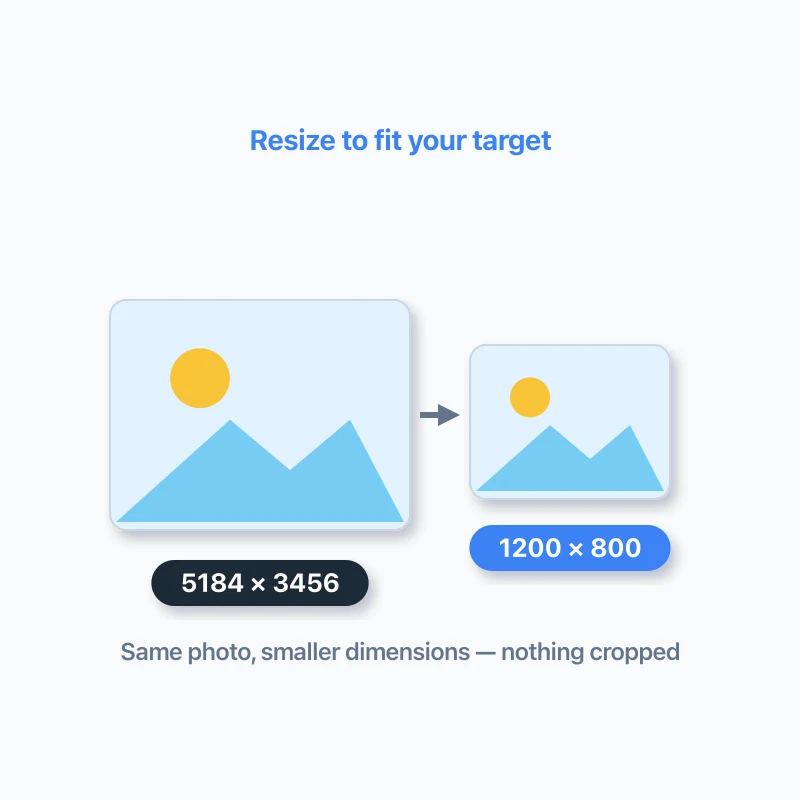
    Resize to your dimensions

    Scale each image down to your max width and height. Contain mode keeps the whole picture with no cropping.

  2. Convert to a modern format2

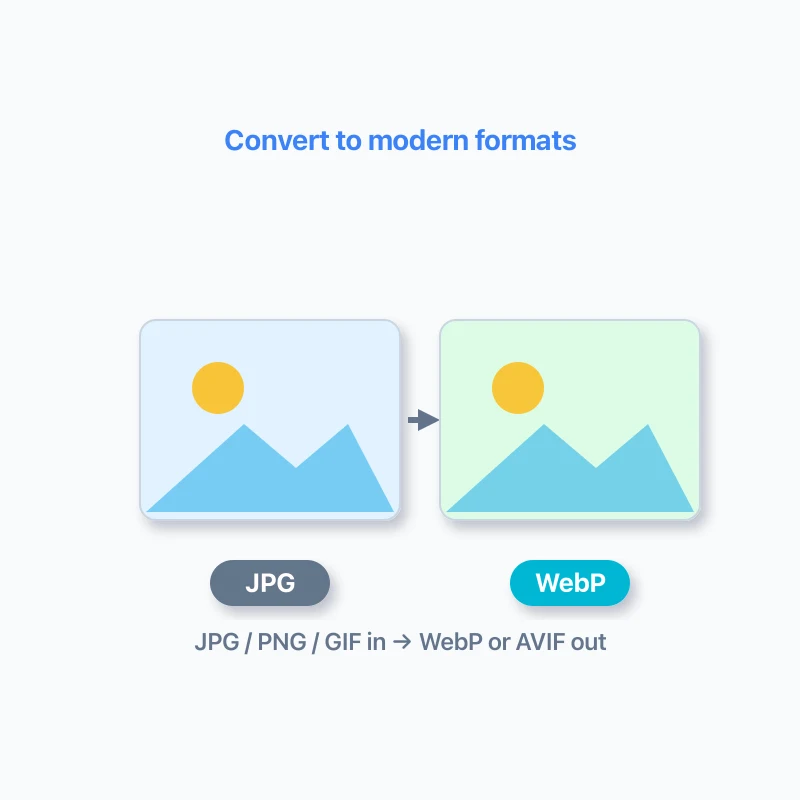
    Convert to a modern format

    Turn JPG, PNG or GIF into WebP or AVIF — smaller files that stay sharp on every screen.

  3. Compress to a target size3

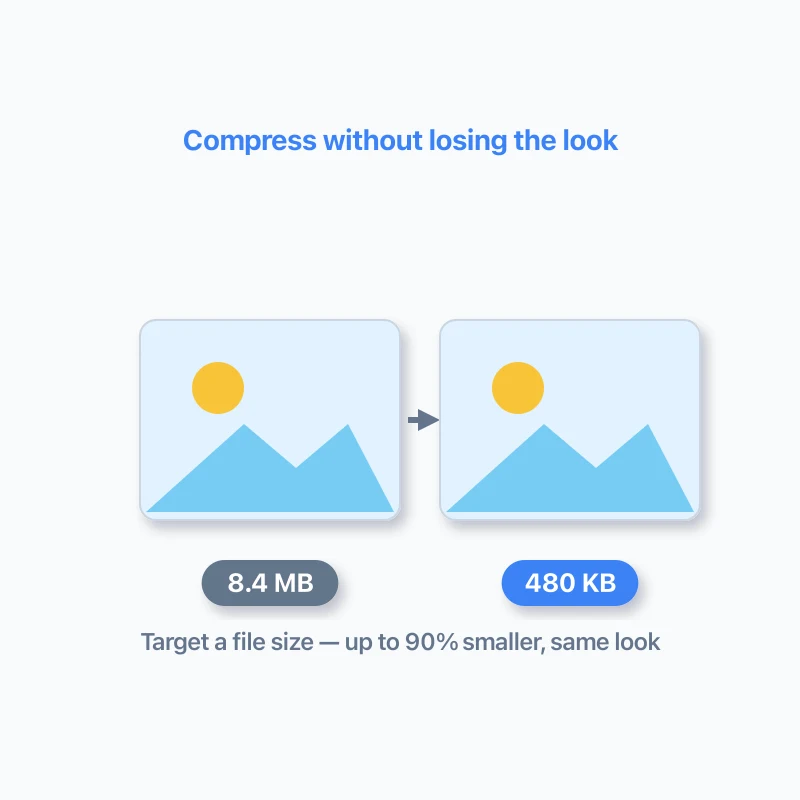
    Compress to a target size

    Shrink the file toward your target size while keeping the look nearly identical — often 80–90% smaller.

Prepare Images for Your Website

Get a batch of images ready before publishing them to a website or blog. Resize them to fit your content area, choose an output format, and balance file size with visual quality — without downloading and uploading between steps.

Website Images

Set a maximum width for general website images while keeping their original proportions.

Blog Content

Prepare article images for your content column. Enter the width used by your blog and keep smaller images at their original size.

Hero & Banner Images

Prepare large images for prominent page sections. Choose a suitable width.

Not sure which settings to use? Start with your page’s actual image display width. Review the output at its intended display size rather than choosing the smallest file at any cost.

What This Batch Image Workflow Is For

This workflow is designed for situations where multiple image files need to follow the same processing rules. Instead of opening a converter, resizer, and compressor separately, you upload the batch once, configure the enabled steps, and run the same sequence across every file. It is useful for preparing image folders for websites, uploads, sharing, storage, or other tasks that require consistent output.

How the Processing Steps Work Together

The workflow runs each enabled step in sequence. Conversion creates the selected output format, resizing limits the image dimensions, and compression adjusts the encoded output toward the selected file-size target. Resizing can reduce the amount of image data that needs to be compressed, while compression should normally be applied after the final output format has been selected. The original files remain unchanged, and the workflow creates new output files.

Choosing the Right Format and Resize Mode

WebP is a practical choice when you want a modern format that can support transparency and often produce smaller files. PNG may be preferable when lossless quality or transparency is important, while JPEG is commonly used for photographs without transparency. Contain preserves the original proportions and fits the image within the selected dimensions. Cover fills the target area and may crop the image, while Stretch fills the dimensions but can distort the original proportions.

How to Balance File Size and Quality

A target file size is a processing goal, not a guarantee that every image will have the same final size. Detailed images, large dimensions, transparency, and different output formats can produce different results. If an image remains above the target, reduce its dimensions or quality gradually. Preview important outputs and compare them with the originals before using or sharing the processed files.

Browser Processing and Practical Limits

The workflow processes image data in the browser instead of sending image files to a remote processing server. Very large images, high-resolution files, large batches, and formats that require additional decoding resources can use significant memory and processing time. If processing becomes slow or fails, try fewer files, smaller source images, or another supported output format. This workflow is intended for repeatable file processing, not for visual editing such as layout design, background removal, or adding text.

Como usar

1

Upload Multiple Images

Drag and drop your images or select multiple files from your device.

2

Configure the Workflow

Choose which processing steps to run and adjust the output format, dimensions, and compression settings.

3

Run the Processing Pipeline

Start the workflow once and apply the enabled steps to each image in sequence.

4

Review and Download

Check the processed results and download individual files or the complete batch as a ZIP.

Related Tools

Cenários Relacionados

Frequently Asked Questions

It applies selected image-processing steps to multiple files in sequence. The default workflow converts images to WebP, resizes them to a maximum dimension, compresses the output, and lets you download the results individually or as a ZIP.