Logo
BulkPicTools

Add Interactive Hotspots to an Image

Add hotspots to an image and export an offline interactive image. Place points, rectangles or circles, give each one a title, note and link, then download a ZIP with HTML, your image and a project JSON — no signup, no upload.

Processed locally in your browser Kostenlos

Demo This is a demo image. Click a marker to read its note, edit it, or upload your own image to start over.

Einstellungen
Colour #0284C7
#
Size22px

No hotspots yet. Pick a shape and click on the image.

Hauptfunktionen von Image Hotspot Generator

Add hotspots to an image in three shapes

Drop a point marker with one click, or drag a rectangle or a circle over the part you want to explain. Move any hotspot by dragging it, resize areas from their corners, and reorder or delete them at any time.

A title, a note and an optional link each

Every hotspot carries a short title, a plain-text note and an optional link with your own link label. Notes are rendered as text only — what you type is never treated as HTML or script.

Responsive image hotspots that stay aligned

Positions are stored as percentages of the source image, so responsive image hotspots keep their place as the picture scales down on a phone or widens on a desktop screen.

An offline interactive image you can take away

Download one ZIP containing index.html, your image at its original quality, hotspots.json and a README. Unzip it and double-click the HTML: an offline interactive image that needs no CDN, no server and no connection.

Mouse, touch and keyboard all work

Hover or tap to read a note, click to pin it open, Tab to reach the next hotspot, Enter to open and Escape to close. Each hotspot has an accessible name, the panel has a close button, and a text list of every note sits under the image.

Private here, and private after you download

All processing happens locally in your browser, so your image is never uploaded. The file you download does not call home either — it has no analytics, no fonts to fetch and no tracking.

How to add hotspots to an image

1

Upload one image

Add a JPG, PNG, WebP, AVIF or GIF. The tool reads its natural pixel size and keeps that as the coordinate system.

2

Choose a hotspot shape

Use a point for a single spot, a rectangle for a panel or region, or a circle for a round detail.

3

Place and adjust hotspots

Click to drop a point, or drag to draw a rectangle or circle. Move, resize, reorder or delete them freely.

4

Add titles, notes and links

Type a title and a plain-text note for each hotspot, and add an https link if the note should point somewhere.

5

Preview and export

Test the interaction at desktop and phone width, then download the offline ZIP or import the project JSON again later.

How it works

From one image to an interactive file that runs on its own.

  1. Read the source image1

    Read the source image

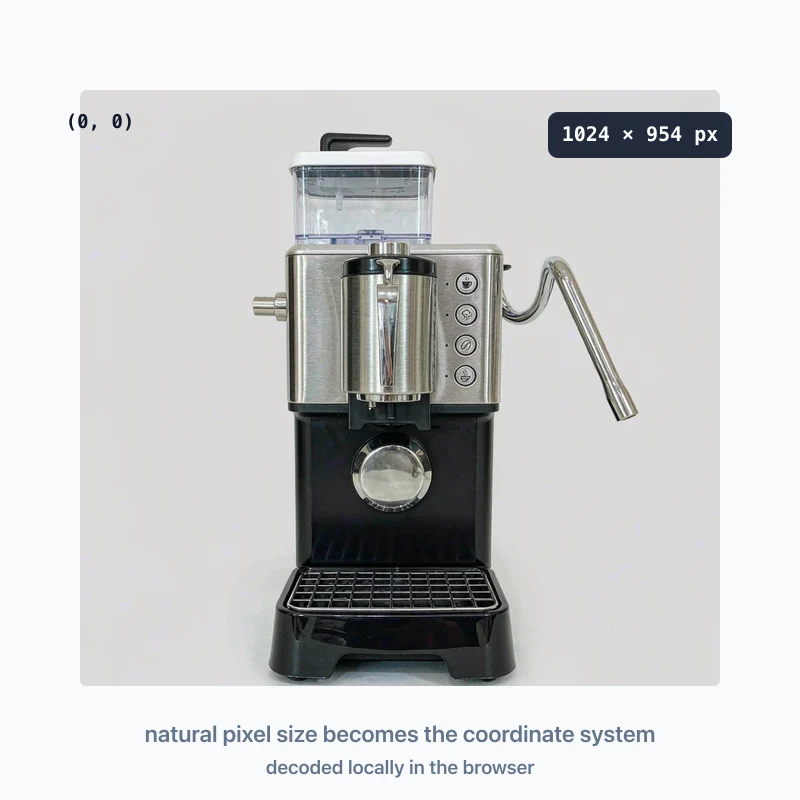
    The image is decoded locally and its natural pixel size is recorded — for example 1024 × 954 — as the single coordinate system for the project.

  2. Place hotspots on the image2

    Place hotspots on the image

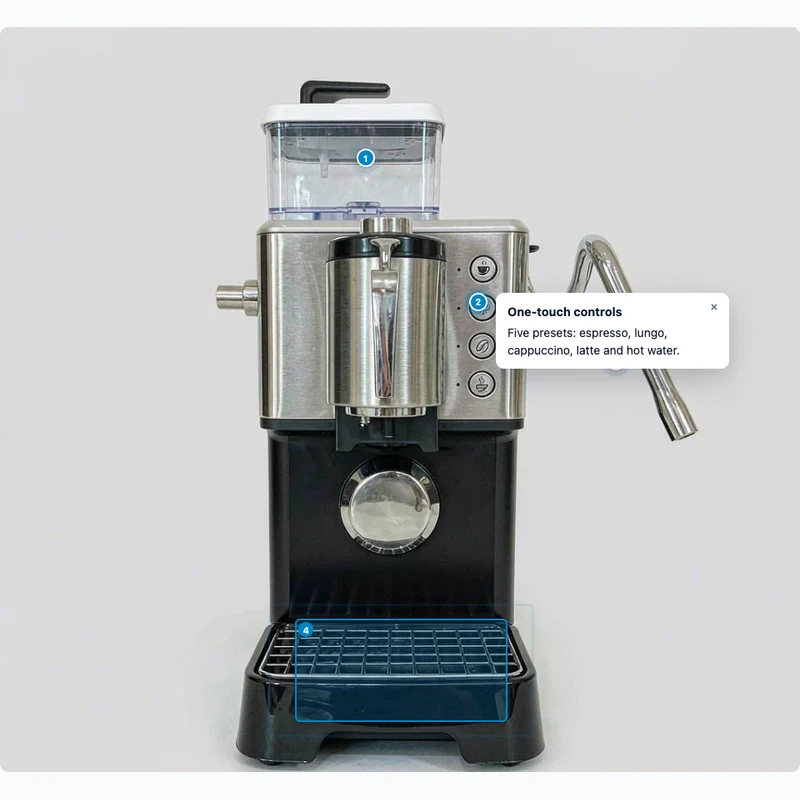
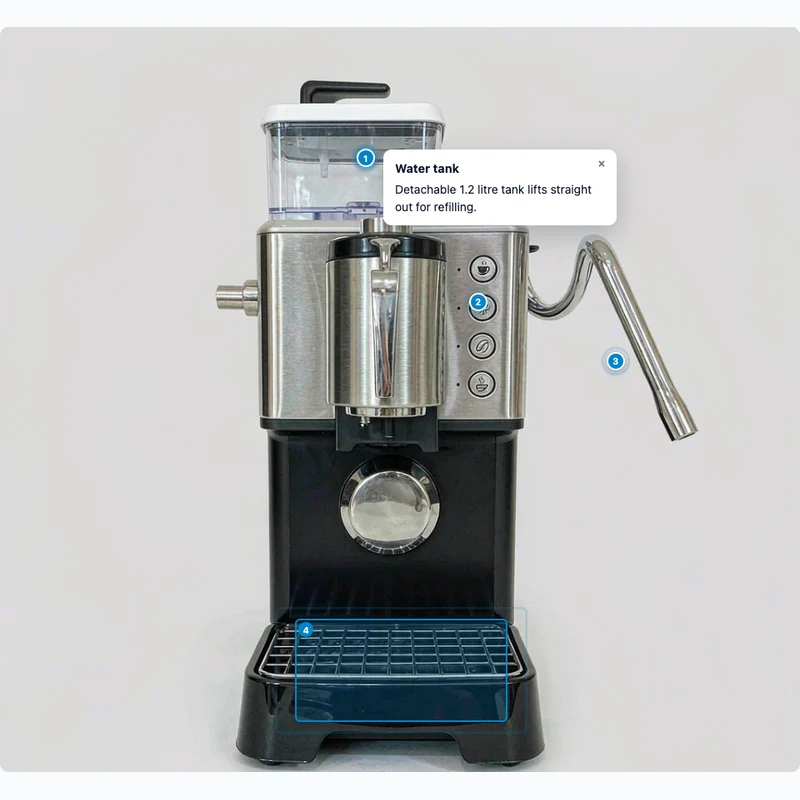
    Drop a point on the water tank, drag a rectangle over the drip tray, then give each one a title and a note. Positions are stored in source-image pixels, not in screen pixels.

  3. Normalise to percentages3

    Normalise to percentages

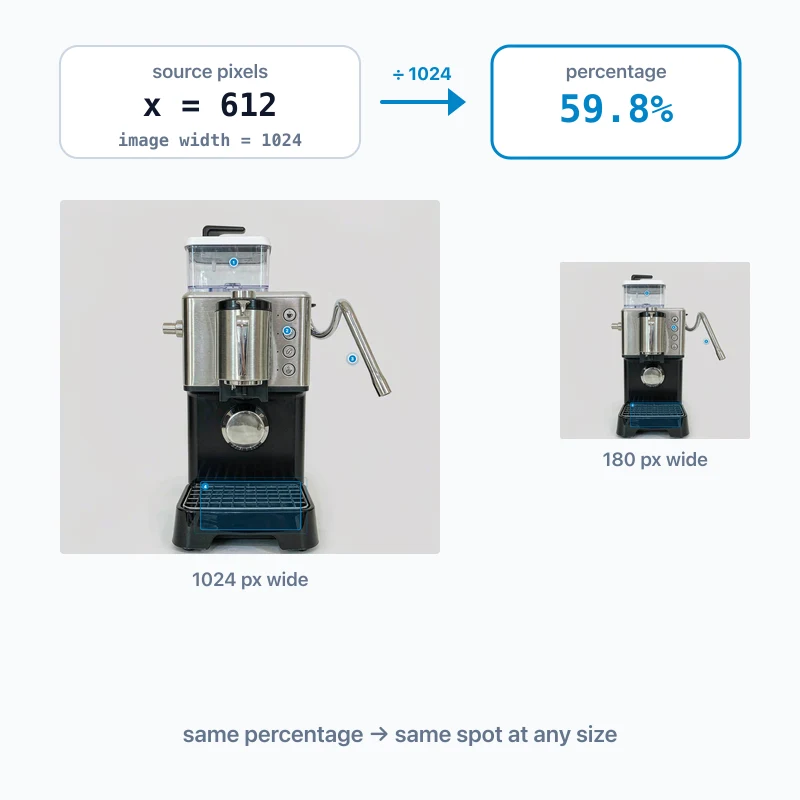
    On export every pixel coordinate is divided by the image width and height. A hotspot at x 612 becomes 59.8%, so it scales with the picture instead of drifting.

  4. Pack an offline folder4

    Pack an offline folder

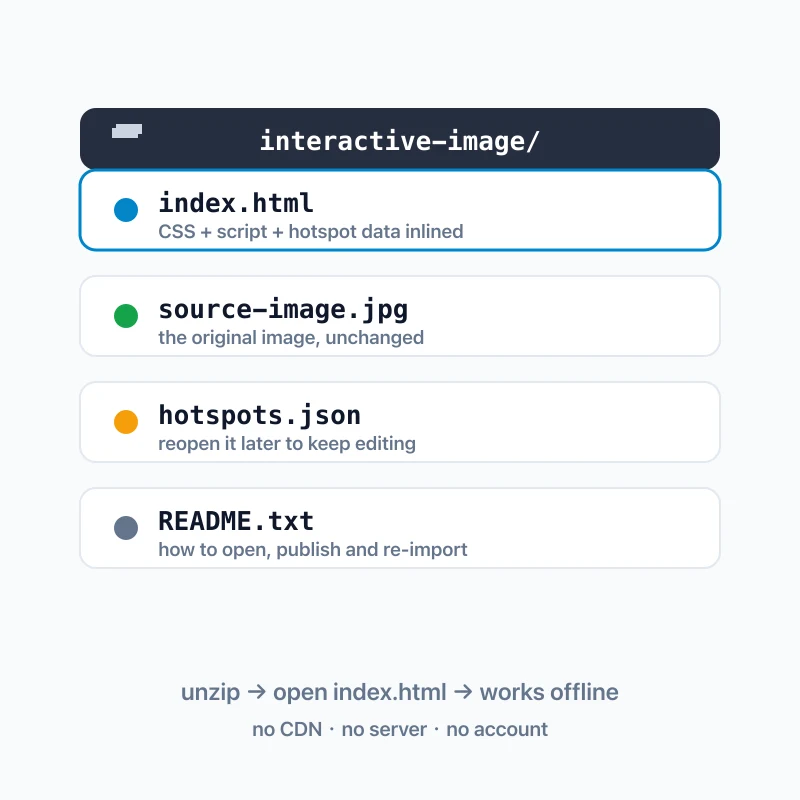
    index.html carries the CSS, the script and the hotspot data inlined; the image sits beside it at full quality, and hotspots.json lets you reopen and edit the project.

What you download

One ZIP. Nothing to install, nothing to sign up for.

index.html

The finished interactive image. CSS, script and hotspot data are inlined, so it opens straight from your drive.

your image file

The original file, unchanged and renamed to a clean name, read by relative path.

hotspots.json

The full project: image size, style and every hotspot. Import it again to keep editing.

single-file.html (optional)

The same page with the image embedded as a data URL — one file you can email or drop into any CMS.

README.txt

How to open the package, how to publish it on your own site, and where the alignment guarantee ends.

Where an interactive image helps

Espresso machine with an open hotspot note about the water tank

Product and equipment diagrams

Number the parts of a product photo or a machine diagram and explain each one without cramming labels into the picture.

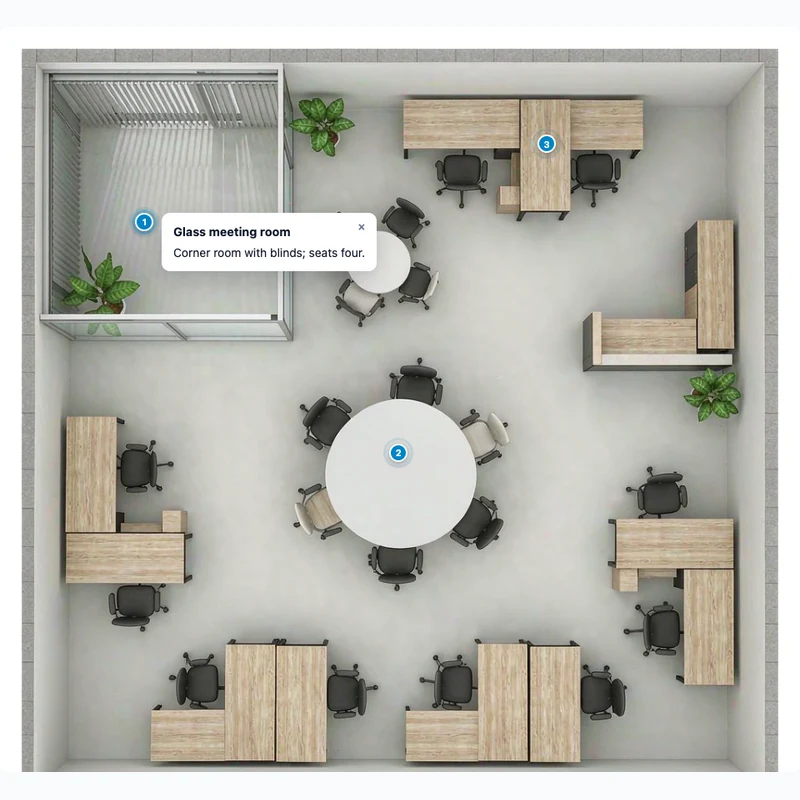
Office floor plan with clickable notes on the meeting room and desk pods

Floor plans and site maps

Mark rooms, exits or zones on a plan and attach a note to each, then hand the folder to a client who can open it offline.

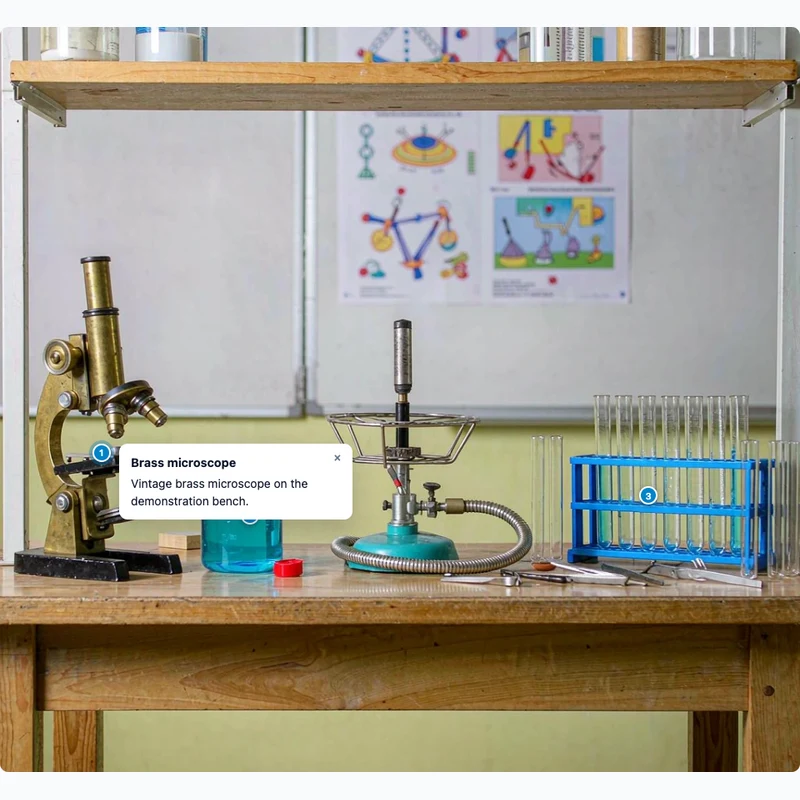
Science lab bench with hotspot notes on the microscope and beaker

Teaching and training material

Annotate a diagram, a photo or a screenshot with the explanations your learners need, and keep a readable text list underneath.

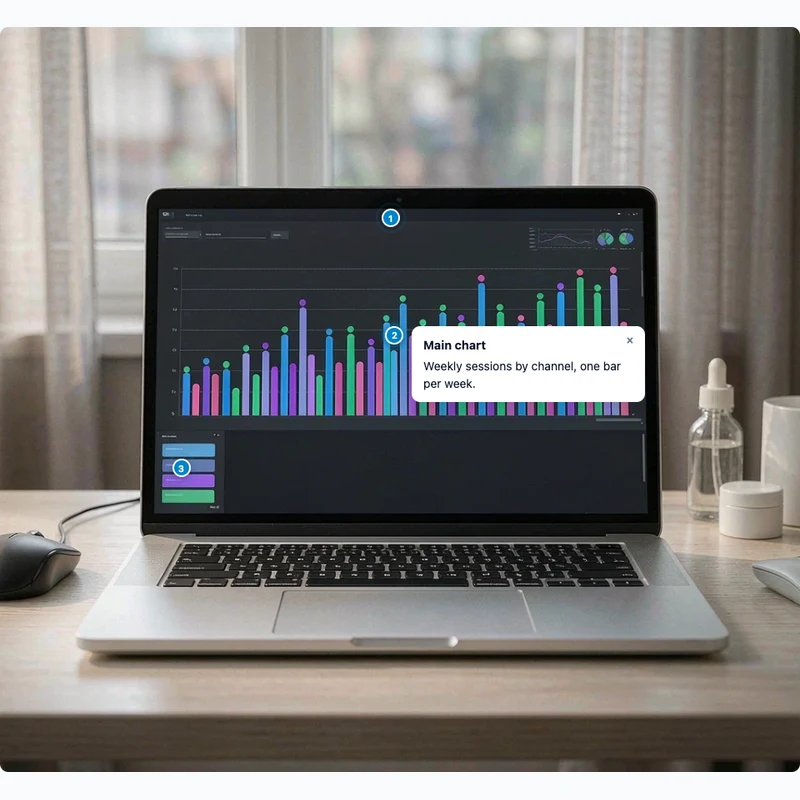
Dashboard screenshot with hotspot notes on the toolbar and main chart

Annotated screenshots

Point out the parts of a UI screenshot that matter, and link each marker to the relevant documentation page.

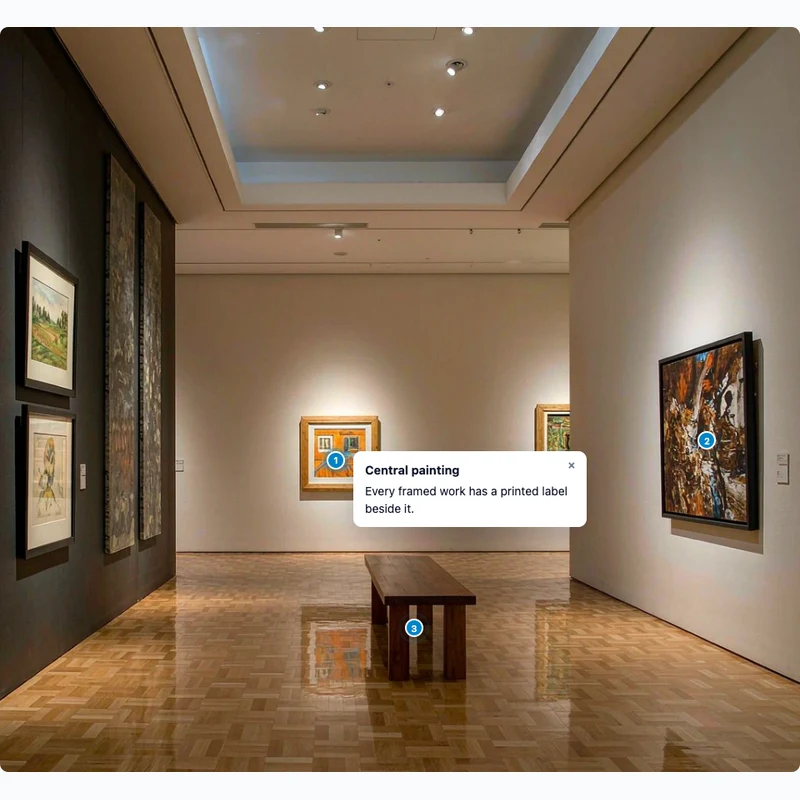
Museum gallery with visitor notes attached to the paintings

Museum, gallery and tour images

Add notes to artworks, exhibits or locations and let visitors read them on their own phone.

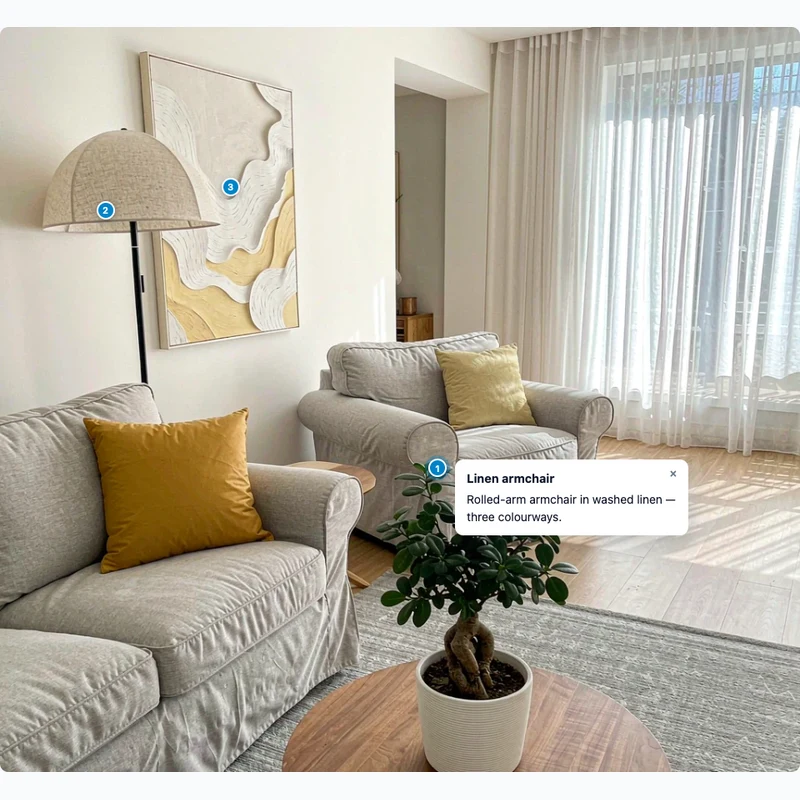
Living room photo with clickable notes on the armchair, lamp and print

Shoppable room and lookbook shots

Tag the sofa, the lamp and the print in a room photo with links to each product page.

What an image hotspot is, and when you need one

An image hotspot is a marker placed on a picture that reveals a note when a reader clicks or taps it. A single static image can only carry as much text as fits on top of it; an image hotspot generator moves that text into a panel that opens on demand, so the picture stays clean and the explanation can be as long as it needs to be.

The usual reason to add hotspots to an image is that the picture and the explanation are doing two different jobs. A product photo shows what something looks like; the hotspot explains what each part does. A floor plan shows the layout; the hotspot says what happens in each room. Keeping the two separate means the same image can serve readers who only glance at it and readers who want every detail.

What makes an exported interactive image actually portable

Most interactive image maker tools are hosting services: they keep your project on their server and give you an embed code. That is convenient until you need the file to work somewhere they do not reach — an intranet, a USB stick, an email attachment, or a page you will still own in five years.

This tool goes the other way and exports an offline interactive image. The CSS, the script and the hotspot data are inlined into image hotspot html that reads its picture by relative path, so unzipping the folder and double-clicking the file is enough. There is no account to expire, no CDN to go offline, and no code that phones home. If you would rather ship one file instead of a folder, the optional single-file build embeds the image as a data URL.

Why hotspots stay aligned when the image resizes

Hotspots are recorded against the natural pixel size of your source image and stored on export as percentages of its width and height. Because the overlay and the picture share one box and the picture keeps its aspect ratio, responsive image hotspots stay over the same detail whether the image is 1024 pixels wide on a desktop or 360 pixels wide on a phone.

That guarantee has a boundary worth knowing: it assumes the picture keeps its aspect ratio. If you crop the image afterwards, or place it in a container that crops it — a fixed-height card using object-fit: cover, for example — part of the picture is no longer visible and the percentages no longer land where you put them. Resize the image freely; if you change what is visible, re-check the hotspots.

Keeping the result usable for everyone

A hotspot that only appears on hover is invisible to anyone using a keyboard or a touch screen. Every hotspot here is a real button: it can be reached with Tab, opened with Enter or Space, and closed with Escape or an explicit close button. Tapping on a phone pins the note open instead of flashing it, and the panel is kept inside the picture so it is never cut off at the edge of the screen.

Underneath the image, the same notes are rendered as an ordinary text list with the same links. It is useful for readers who would rather not hunt for small markers, and it means the content still makes sense to search engines, to screen readers, and to anyone who opens the file with scripts disabled.

scenes.detail.related_tools

scenes.detail.related_scenes

Häufig gestellte Fragen zu Image Hotspot Generator

Upload one image, pick a shape — point, rectangle or circle — then click or drag on the picture to place a hotspot. Drag to move it, use the corner handles to resize an area, and type a title and note for each one. When you are happy with the result, download the ZIP.