Logo
BulkPicTools

Cursor Maker: Turn PNGs into Windows .cur Cursors or Website CSS Cursors

Turn a transparent PNG into a Windows .cur cursor or a website CSS cursor. Add the other pointer states when you need them, set each hotspot, hover a live preview to feel it, and export the whole scheme in one ZIP with a ready-to-open preview page — all processed locally in your browser.

Processed locally in your browser मुफ़्त
Upload a transparent PNG to start

Your first image becomes the Normal Select pointer. Add the other pointer states when you need them.

फ़ीचर

A Whole Cursor Scheme at Once

Assign a pointer state to each PNG and export every Windows .cur and the matching CSS rules together — no repeating the upload-and-replace loop fifteen times.

15 Pointer States

From Normal Select and Link Select to the resize and busy variants, each slot carries its Windows pointer name and a ready-to-use CSS selector.

Exact Hotspot per Cursor

Click the canvas to set the active point. Coordinates stay correct across 32, 48 and 64 px because they are stored as ratios, not pixels.

Live Hotspot Preview

Hover the preview area to feel the real cursor at its hotspot before you export — no guessing whether the active point lands where you meant it to.

A Preview Page in Every ZIP

Each export ships a preview.html: pick a pointer and the whole page uses it, so you can hover anywhere to test every cursor. Preview it on the results page or open it locally.

Local Browser Processing

Every PNG is encoded into .cur and CSS in your browser. Nothing is uploaded to a server.

From PNG to a Cursor Scheme

1

Upload a Transparent PNG

Your first image becomes the Normal Select pointer. Use a PNG with a transparent background for clean edges.

2

Add the Pointer States You Need

Click any empty slot to assign the next pointer (Link Select, Text Select, Busy, and so on). You do not have to fill all fifteen.

3

Set the Hotspot

On the square canvas, click where the active point should be for the selected cursor. Presets cover top-left, center and arrow tip.

4

Preview the Live Cursor

Hover the preview area to feel the real cursor at its hotspot before you export anything.

5

Choose Framing and Sizes

Pick Contain or Cover, choose which sizes go inside each .cur (32, 48 and 64 px by default), and set an optional filename prefix.

6

Generate and Open the Results

Generate the scheme to open the results page, where you can preview the built-in preview.html, browse the ZIP and download every .cur, PNG and cursor.css.

How a PNG becomes a cursor scheme

One transparent PNG per pointer state, a hotspot on each, and every export ships a preview page you can hover-test.

  1. Start from a transparent PNG1

    Start from a transparent PNG

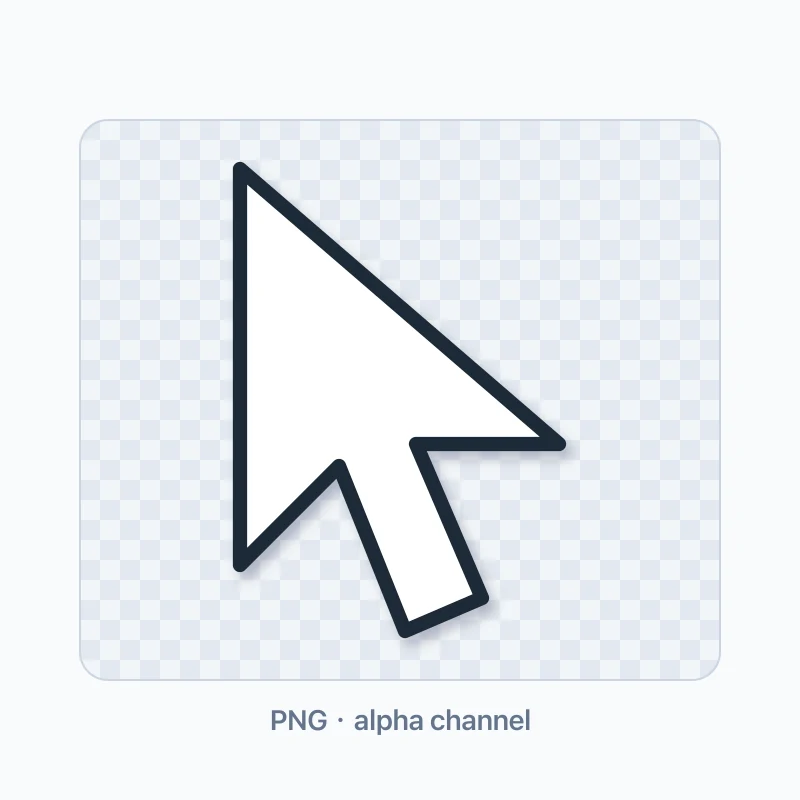
    Bring your own artwork with an alpha channel — the checkerboard is what stays invisible on your desktop or page.

  2. Mark the hotspot2

    Mark the hotspot

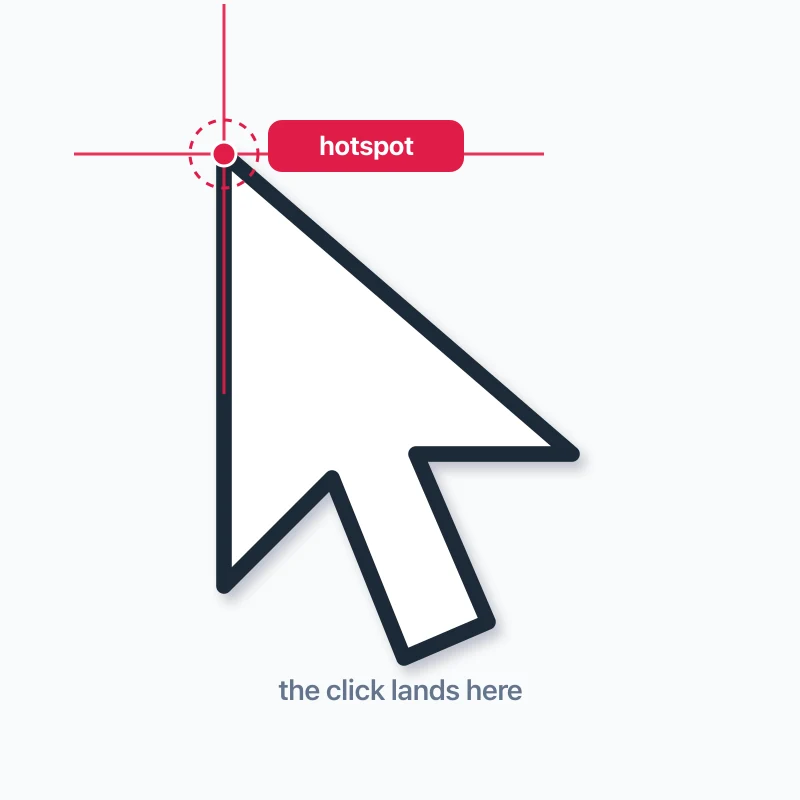
    Click the canvas to place the active point. Clicks land on the hotspot, not the image center — the red marker shows exactly where.

  3. One .cur, three sizes3

    One .cur, three sizes

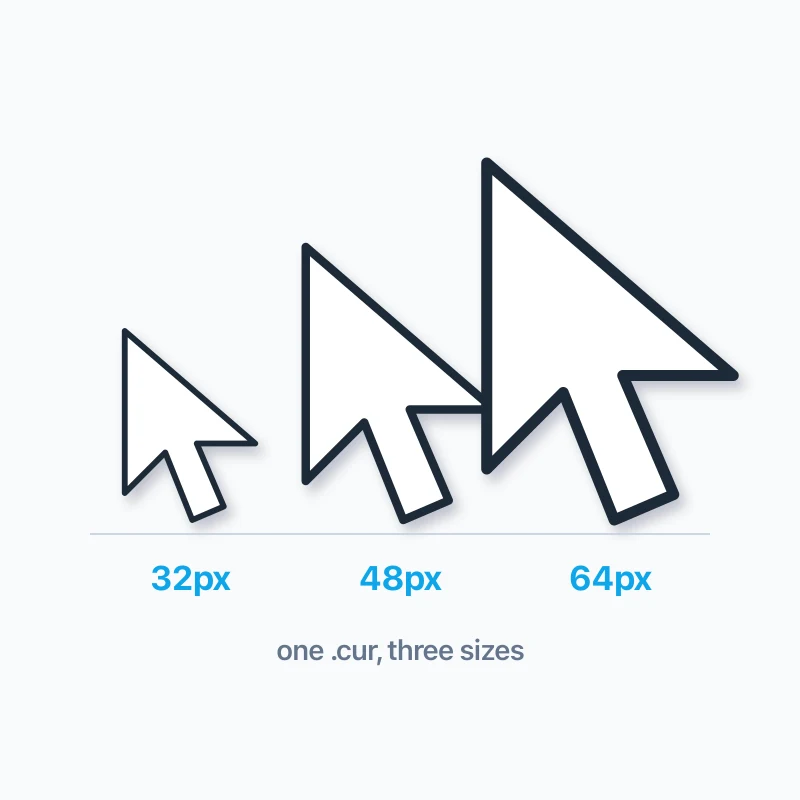
    Each .cur embeds 32, 48 and 64 px with the hotspot rescaled for every size, so Windows picks the sharpest fit for your display.

  4. Pointer states map to files and CSS4

    Pointer states map to files and CSS

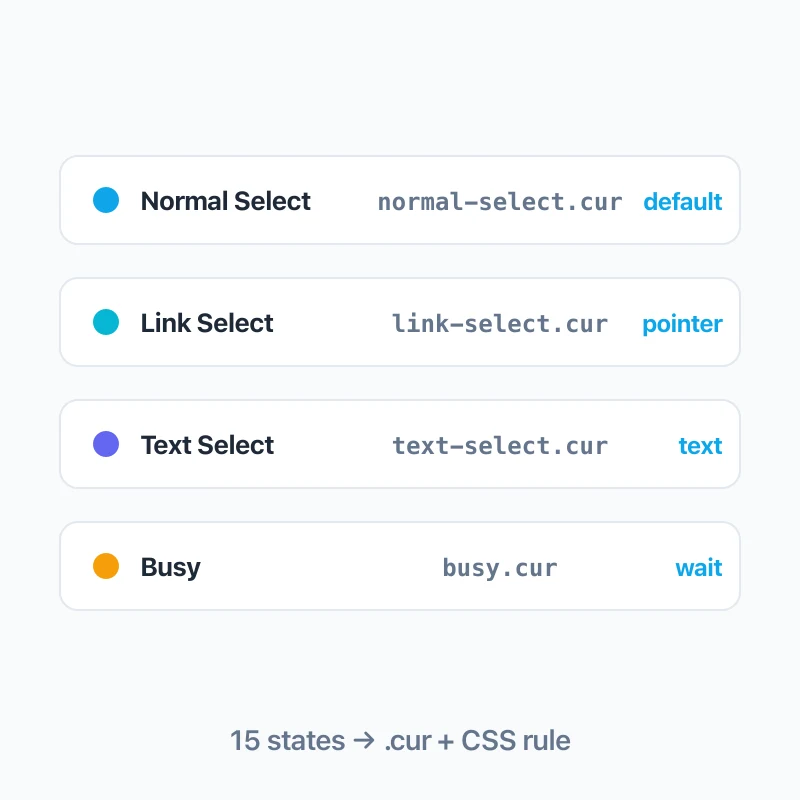
    Every state you fill names its own .cur and writes its own CSS rule with a fallback keyword — fill only the states you need.

What Is Inside the ZIP?

Only the states you filled in are included. Each gets its own .cur and PNG.

windows/

One multi-size .cur per assigned pointer state (32, 48 and 64 px, each with its own hotspot).

website/

One PNG per assigned pointer state plus cursor.css, which contains one semantic CSS rule per state.

README.txt

A state ↔ filename mapping table and the Windows Mouse Properties steps to replace each pointer individually.

preview.html

A self-contained preview page: pick a pointer and the whole page uses that cursor, so you can hover anywhere to test every hotspot. The cursors are inlined, so it also works offline — and you can preview it directly on the results page.

Who Uses a Custom Cursor Scheme

Brand a Whole Cursor Set

Indie developers replace every Windows pointer with a single branded style instead of mixing system defaults.

Full Interaction Set for Web Games

Web games ship hover, text, busy and resize cursors so the play area feels native.

Unify Internal Tooling

Teams give internal apps a consistent cursor language across the desktop and the browser.

Teaching Demos

Instructors show how hotspots, transparency and fallbacks actually behave.

What a Cursor Hotspot Is (and Why It Matters)

The hotspot is the single active point of a cursor — the tip of an arrow, the center of a crosshair, or the link finger. When you click, the click happens at the hotspot, not at the image center.

A cursor with the wrong hotspot feels broken: links open when you are not over them, and text cursors blink away from the caret. This tool lets you set the hotspot by clicking the canvas, and shows the exact pixel coordinate so you can verify it.

  • Use the Top-left preset for arrow cursors.
  • Use Center for crosshairs and busy spinners.
  • Use Arrow tip when the artwork points diagonally.

Why the PNG Must Be Transparent

Cursors float over content, so the area around the artwork has to be transparent. A filled rectangular background would paint an ugly box over your page or desktop.

Export your artwork as PNG with an alpha channel. JPEG has no transparency and will not work. If your source has a solid background, remove it first, then upload the result here.

.cur for Windows, CSS cursor for the Web

These are two separate delivery paths, and this tool produces both from the same artwork.

A .cur file is what Windows loads in Mouse Properties to replace a system pointer. A CSS cursor is what a website applies with the cursor property plus a fallback keyword. They are not interchangeable: a .cur does not drop into a stylesheet, and a CSS cursor does not install into Windows.

Always keep the CSS fallback

A CSS cursor declaration without a fallback keyword is invalid and the browser ignores the whole rule. This tool always appends a fallback such as auto or pointer.

The Browser 128 px Cursor Limit

Browsers ignore CSS cursors larger than 128 × 128 px, and most recommend 32 × 32 px for crisp results. Keep your web cursor at or below 128 px.

Windows .cur files can carry several sizes inside one file, and the system picks the best fit for the current DPI. This tool embeds 32, 48 and 64 px by default, and you can add 16, 96 or 128 px per .cur in the export settings.

Static Cursors Only (No .ani Yet)

This tool creates static Windows cursors (.cur). Animated Windows cursors use the .ani format and are not included yet.

If you need a spinning wait cursor, use the static Busy pointer for now; a true multi-frame .ani exporter would be a separate tool.

Your Images Never Leave the Browser

All encoding — from PNG to .cur and to CSS — runs locally in your browser. The image data is not uploaded to a server.

The page itself loads the application code from the website, but the cursor artwork is processed on your device.

Choosing Between 32, 48 and 64 Pixels

A 32 px cursor is the web default and looks sharp on standard displays. On high-DPI screens or when your artwork has fine detail, a 48 or 64 px cursor stays easier to see.

If your custom cursor looks too small, export a larger size — that is the honest way to make a custom cursor bigger. Windows also lets you scale the system pointer in Settings → Accessibility → Mouse pointer, but that is a system setting, not something this tool changes.

Pointer States: From Windows Pointers to CSS Keywords

Windows lists about fifteen pointer states in Mouse Properties, and most of them map almost one-to-one to a CSS cursor keyword. Assigning a state to an image lets this tool name the .cur file and write the matching CSS rule at the same time.

For example, Link Select becomes a rule on links and buttons with the pointer fallback, and Text Select becomes a rule on inputs and textareas with the text fallback. The README in the ZIP spells out which .cur replaces which Windows pointer.

How to Use the Generated Files

Windows

  1. 1.Open Settings → Bluetooth & devices → Mouse → Additional mouse settings.
  2. 2.In the Pointers tab, select the pointer you want to replace under Customize.
  3. 3.Click Browse and choose the matching .cur from the windows/ folder (see README.txt).
  4. 4.Click Open, then Apply. Repeat for each pointer state you exported.

Website

  1. 1.Copy the website/ folder into your project and reference the PNGs in cursor.css.
  2. 2.Paste the cursor.css rules into your stylesheet, keeping the fallback keyword.
  3. 3.Test the cursor in your target browsers and verify the hotspot feels right.

scenes.detail.related_tools

scenes.detail.related_scenes

बैच छवि प्रसंस्करण वर्कफ़्लोएक जुड़े हुए वर्कफ़्लो में कई छवियों को बैच में कन्वर्ट, रीसाइज़ और कंप्रेस करें। प्रोसेसिंग स्टेप्स को एक बार कॉन्फ़िगर करें, उन्हें अपनी फ़ाइलों पर लागू करें और परिणामों को अलग-अलग या ZIP के रूप में डाउनलोड करें।
ऐप आइकन पैकेज जनरेटरएक वर्गाकार छवि से वेब, Android और iOS के लिए प्रोडक्शन-रेडी ऐप आइकन पैकेज बनाएं। एक ही ब्राउज़र-आधारित वर्कफ़्लो में favicons, PWA manifest आइकन, Android लॉन्चर संसाधन और Xcode AppIcon.appiconset जनरेट करें।
App Screenshot Generatorऐप स्क्रीन अपलोड करें, कैप्शन और ब्रांडेड लेआउट जोड़ें, फिर Apple App Store और Google Play के लिए स्टोर-तैयार इमेज सेट एक्सपोर्ट करें — सब कुछ आपके ब्राउज़र में स्थानीय रूप से।
Contact Sheet MakerTurn a batch of photos into a printable contact sheet with file names and numbers. Arrange images, choose A4 or US Letter pages, and export a multi-page PDF or page images — all locally in your browser.

FAQ

It turns transparent PNGs into Windows .cur cursors and website CSS cursors. Generate the scheme and the results page gives you one ZIP containing every assigned pointer state, the matching CSS, a preview.html and a README — you can preview or download any file from there.